Several types of situations may arise that require you to notify the user about an event that occurs in your application. Some events require the user to respond and others do not. For example:
몇몇 유형의 상황들이 여러분으로 하여금 사용자에게 애플리케이션에서 발생한 이벤트를 통보하게 하는 일을 만들 수 있다. 약간의 이벤트들은 사용자의 응답을 요구하며, 그 밖의 것들은 그렇지 않다. 예를 들어 다음과 같다.
Each of these notification tasks can be achieved using a different technique:
이러한 노티피케이션 업무 각각은 다른 기법을 사용해서 이루어질 수 있다.
This document summarizes each of these techniques for notifying the user and includes links to full documentation.
이곳에서는 사용자에게 통보하는 것에 대한 이러한 각각의 기법을 요약하며, 몇 가지에 대해서는 조금 더 상세하게 설명한다.
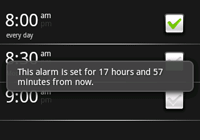
A toast notificaiton is a message that pops up on the surface of the window.
It only fills the amount of space required for the message and the user's current
activity remains visible and interactive. The notification automatically fades in and
out, and does not accept interaction events. Because a toast can be created from a background
Service, it appears even if the application isn't visible.
Toast 노티피케이션은 윈도우 표면에 팝업되는 하나의 메시지이다. 그것은 오직 메시지를 위해 요구되는 양 만큼의 공간space을 채우며, 사용자의 현재 액티비티는 보여지며 상호작용 가능한 상태로 유지된다. 노티피케이션은 자동으로 나타났다가 사라진다. 그리고 그것은 상호작용 이벤트를 받아들이지는 않는다. Toast는 백그라운드 서비스로부터 생성될 수 있기 때문에, 그것은 애플리케이션이 보이지 않을 때 조차도 나타난다.
A toast is best for short text messages, such as "File saved," when you're fairly certain the user is paying attention to the screen. A toast can not accept user interaction events; if you'd like the user to respond and take action, consider using a Status Bar Notification instead.
Toast는 사용자가 스크린에 주의를 기울이고 있는 것을 여러분이 명확하게 확신할 때, “파일이 저장되었습니다File saved.”와 같은 짧은 텍스트 메시지를 표시하는 데에는 최선이다. Toast는 사용자와의 상호작용 이벤트를 수용할 수 없다. 만약 여러분이 사용자의 응답과 액션을 얻고자 한다면, 대신 상태바Status Bar 노티피케이션을 사용하는 것을 고려하라.
For more information, refer to Creating Toast Notifications.
더 많은 정보에 대해서는 “Toast 노티피케이션 생성하기”를 참고하라.
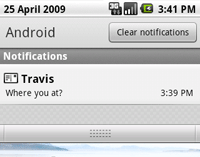
A status bar notification adds an icon to the system's status bar
(with an optional ticker-text message) and an expanded message in the "Notifications" window.
When the user selects the expanded message, Android fires an
Intent that is defined by the notification (usually to launch an
Activity).
You can also configure the notification to alert the user with a sound, a vibration, and flashing
lights on the device.
상태바Status Bar 노티피케이션은 시스템의 상태 바(선택사항으로 조회 텍스트(ticker-text) 메시지를 가짐)에 아이콘을, 그리고 “노티피케이션notifications” 윈도우에는 확장 메시지를 추가한다. 그 사용자가 확장 메시지를 선택할 때, 안드로이드는 노티피케이션에 정의된 인텐트를 발생시킨다(보통 액티비티를 런치하기 위해). 여러분은 또한 디바이스 상의 사운드sound, 진동vibration, 그리고 발광 빛flashing light을 사용해서 사용자에게 경보alert하도록 노티피케이션을 설정할 수 있다.
This kind of notification is ideal when your application is working in
a background Service and needs to
notify the user about an event. If you need to alert the user about an event that occurs
while your Activity is still in focus, consider using a
Dialog Notification instead.
이런 종류의 노티피케이션은 여러분의 애플리케이션이 백그라운드 서비스Service에서 작업하고 있으면서 사용자에게 이벤트를 통보하는 것이 필요할 때 이상적이다. 만약 여러분의 액티비티가 여전히 포커스되어 있는 동안 발생하는 이벤트를 사용자에게 경보alert하는 것이 필요하다면, 대신에 다이얼로그Dialog 노티피케이션을 사용하는 것을 고려하라.
For more information, refer to Creating Status Bar Notifications.
더 많은 정보에 대해서는, “상태바status bar 노티피케이션”을 참고하라.
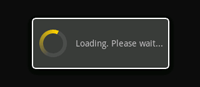
A dialog is usually a small window that appears in front of the current Activity. The underlying Activity loses focus and the dialog accepts all user interaction. Dialogs are normally used for notifications and short activities that directly relate to the application in progress.
다이얼로그는 보통 현재 액티비티 앞에 나타나는 하나의 작은 윈도우이다. 그 아래 놓이게 되는 액티비티는 포커스를 잃으며(역주 : 액티비티가 포커스를 잃음에도 불구하고 이는 액티비티의 생명주기에는 영향을 미치지 않음), 그리고 그 다이얼로그는 사용자와의 모든 상호작용을 받아들인다. 다이얼로그는 보통 노티피케이션과 진행중인 애플리케이션에 직접적으로 관련된 짧은 액티비티들을 위해 사용된다.
You should use a dialog when you need to show a progress bar or a short message that requires confirmation from the user (such as an alert with "OK" and "Cancel" buttons). You can use also use dialogs as integral componenents in your application's UI and for other purposes besides notifications. For a complete discussion on all the available types of dialogs, including its uses for notifications, refer to Creating Dialogs.
여러분이 진행상태바progress bar 또는 (“OK” 와 “Cancel” 버튼과 같은) 사용자로 부터의 확인을 요구하는 짧은 메시지를 보여주는 것이 필요할 때, 다이얼로그를 사용해야 한다. 여러분은 또한 노티피케이션 이외의 다른 목적을 위해, 여러분의 애플리케이션 UI에서 필수적인 컴포넌트로 다이얼로그를 또한 사용할 수 있다. 노티피케이션을 위한 다이얼로그의 사용을 포함해서, 사용가능한 모든 타입의 다이얼로그에 대한 완전한 논의에 대해서는, “다이얼로그 생성하기”를 참고하라.