This section describes some of the more common types of layout objects
to use in your applications. Like all layouts, they are subclasses of ViewGroup.
이 섹션은 여러분의 애플리케이션에서 사용할 수 있는 더 많은 일반적 유형의 레이아웃 오브젝트 중 몇 가지를 설명한다. 모든 레이아웃처럼, 그것들도 뷰그룹ViewGroup의 서브클래스이다.
Also see the Hello Views tutorials for some guidance on using more Android View layouts.
더 많은 안드로이드 뷰 레이아웃을 사용하는 것에 대한 몇 가지 안내에 대해서 Hello Views 튜토리얼을 보라.
FrameLayout is the simplest type of layout
object. It's basically a blank space on your screen that you can
later fill with a single object for example, a picture that you'll swap in and out.
All child elements of the FrameLayout are pinned to the top left corner of the screen; you cannot
specify a different location for a child view. Subsequent child views will simply be drawn over previous ones,
partially or totally obscuring them (unless the newer object is transparent).
FrameLayout은 가장 간단한 레이아웃 오브젝트 유형이다. 그것은 기본적으로 여러분의 스크린 상의 빈 공간이다. 여러분은 그곳에 하나의 오브젝트를 넣을 수 있다 - 예를 들어 여러분은 그 안에 사진을 넣거나 뺄 수 있다. FrameLayout의 모든 자식child 엘리먼트는 스크린의 상단 좌측 가장자리에 고정적으로 배치된다. 여러분은 자식child 뷰를 다른 위치에 지정할 수 없다. 그 다음의 자식child 뷰들은 간단하게 이전의 것 위에 부분적으로 또는 전체적으로 그것을 가리는 형태로 표시될 것이다(새로운 오브젝트가 투명하지 않는 한 그렇다).
LinearLayout aligns all children in a
single direction vertically or horizontally, depending on how you
define the orientation attribute. All children are
stacked one after the other, so a vertical list will only have one child per
row, no matter how wide they are, and a horizontal list will only be one row
high (the height of the tallest child, plus padding). A LinearLayout respects margins between children
and the gravity (right, center, or left alignment) of each child.
LinearLayout는 모든 자식들children을 하나의 방향으로 정렬한다 ? 그 방향은, 여러분이 orientation 애트리뷰트를 어떻게 정의했느냐에 따라 수직 또는 수평이 된다. 모든 자식들children은 순차적으로 쌓여진다stacked. 그러므로 수직적 리스트는 그들이 넓이가 얼마든 상관없이 각 행은 하나의 자식child만 가질 것이다. 그리고 수평적 리스트는 오직 한 개의 행 높이를 가질 것이다(그 행 높이는, 가장 큰 자식(child)의 높이에 패딩(padding)을 더한 것이 된다). LinearLayout는 자식들 간의 마진margin과 각 자식의 그라비티gravity(right, center, 또는 left 정렬 값을 가짐)를 고려한다.
LinearLayout also supports assigning a
weight to individual children. This attribute assigns an "importance" value to a view,
and allows it to expand to fill any remaining space in the parent view.
Child views can specify an integer weight value, and then any remaining space in the view group is
assigned to children in the proportion of their declared weight. Default
weight is zero. For example, if there are three text boxes and two of
them declare a weight of 1, while the other is given no weight (0), the third text box without weight
will not grow and will only occupy the area required by its content.
The other two will expand equally to fill the space remaining after all three boxes are measured.
If the third box is then given a weight of 2 (instead of 0), then it is now declared
"more important" than both the others, so it gets half the total remaining space, while the first two
share the rest equally.
LinearLayout는 또한 개별적인 자식들children에게 가중치weight를 지정하는 것을 지원한다. 이 애트리뷰트는 뷰에 “중요도importance” 값을 지정하고, 부모parent 뷰에 있는 잔여 공간을 채울 수 있도록 그것을 확대expand하는 것을 가능하게 한다. 자식child 뷰는 정수integer 가중치weight 값을 지정할 수 있으며, 그러면 뷰그룹에 있는 임의의 잔여 공간은 그것들이 선언한 가중치weight 비율대로 자식들children에게 할당된다. 디폴트 가중치weight는 0이다. 예를 들어 3개의 텍스트 박스가 있고 그것들 중 2개가 1이라는 가중치weight를 선언하고 나머지가 가중치weight를 가지지 않는다면, 가중치weight를 가지지 않은 세 번째 텍스트 박스는 커지지 않을 것이고 그것의 내용물에 의해 요구되는 영역만을 점유할 것이다. 나머지 두 개는 모든 세 개의 박스가 측정된 이후 남는 공간을 동일하게 채울 수 있도록 확대될 것이다. 만약 세 번째 박스에 0 대신 2라는 가중치weight가 주어진다면, 그것은 이제 나머지 두 개 보다 “더 중요한more important” 것으로 선언된 것이며, 그것은 전체 잔여 공간의 절반을 갖게 되는 반면에 처음 두개는 나머지를 동등하게 공유한다.
Tip: To create a proportionate size
layout on the screen, create a container view group object with the
layout_width and layout_height attributes set to fill_parent; assign
the children height or width to 0 (zero); then assign relative
weight values
to each child, depending on what proportion of the screen each should
have.
Tip: 스크린에 잘 맞는 크기의 레이아웃을 생성하기 위해서는 layout_width와 layout_height 애트리뷰트가 fill_parent로 설정된 컨테이너 뷰그룹 오브젝트를 생성하라. 자식들children의 높이와 너비를 0(zero)으로 할당하라. 그런 후, 각각이 스크린 상에서 가져야 하는 비율에 의존해서 각각의 자식child에게 상대적인 weight 값을 지정하라.
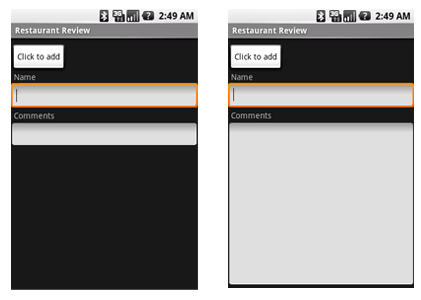
The following two forms represent a LinearLayout with a set of elements: a
button, some labels and text boxes. The text boxes have their width set to fill_parent; other
elements are set to wrap_content. The gravity, by default, is left.
The difference between the two versions of the form is that the form
on the left has weight values unset (0 by default), while the form on the right has
the comments text box weight set to 1. If the Name textbox had also been set
to 1, the Name and Comments text boxes would be the same height.
다음에 나오는 두개의 폼은 하나의 버튼, 몇 개의 라벨들, 그리고 텍스트 박스들과 같은 엘리먼트의 집합을 가진 LinearLayout을 보여준다. 텍스트 박스들은 fill_parent로 지정된 그것들의 너비를 가지고 있으며, 나머지 엘리먼트들은 wrap_content로 지정되어 있다. 디폴트로 gravity는 left이다. 두 개의 폼 버전간의 차이는, 오른쪽에 있는 폼이 가중치weight 1로 지정된 comments 텍스트 박스를 가진 반면에, 왼쪽에 있는 폼은 가중치weight 값을 가지고 있지 않다는 것(디폴트로 0임)이다. 만약 Name 텍스트 박스 또한 1로 지정되었다면, Name과 Comments 텍스트 박스는 동일한 높이를 가지게 될 것이다.
Within a horizontal LinearLayout, items are aligned by the position of
their text base line (the first line of the first list element topmost or
leftmost is considered the reference line). This is so that people scanning
elements in a form shouldn't have to jump up and down to read element text in
neighboring elements. This can be turned off by setting
android:baselineAligned="false" in the layout XML.
수평적인 LinearLayout 안에서 아이템들은 그것들의 텍스트 베이스 라인base line의 위치에 의해 정렬된다(최상위 또는 가장 왼쪽인, 첫 번째 리스트 엘리먼트의 첫 번째 라인이 레퍼런스 라인으로 간주된다). 이것은 하나의 형식으로 되어 있는 엘리먼트들을 살펴보고 있는 사람이, 인접하는neighboring 엘리먼트들에 있는 엘리먼트 텍스트를 읽기 위해 위와 아래로 움직이지 않도록 하기 위한 것이다. 이것은 레이아웃 XML 내의 android:baselineAligned=”false” 설정에 의해 해제될 수 있다.
To view other sample code, see the Hello LinearLayout tutorial.
다른 샘플 코드를 보려면 Hello LinearLayout 튜토리얼을 보아라.
TableLayout positions its children into rows
and columns. TableLayout containers do not display border lines for their rows, columns,
or cells. The table will have as many columns as the row with the most cells. A table can leave
cells empty, but cells cannot span columns, as they can in HTML.
TableLayout는 행과 열 안에 그것의 자식들children을 배치한다. TableLayout 컨테이너는 그것들의 행, 열, 또는 셀에 대한 경계선을 표시하지 않는다. 테이블은 가장 많은 셀을 가진 행 만큼 많은 열을 가질 것이다. 테이블은 셀을 빈 공간으로 남겨둘 수 있다. 하지만 셀은 HTML에서 할 수 있는 것처럼, 행을 병합할 수는 없다. (역주: 원문에는 cells cannot span columns, 즉 셀은 열을 병합할 수 없다고 되어 있으나 잘못된 듯하다. layout_span 애트리뷰트가 열을 병합하는 데 사용된다. 아마도 행row을 병합할 수 없다로 정정되어야 할 듯 함.)
TableRow objects are the child views of a TableLayout
(each TableRow defines a single row in the table).
Each row has zero or more cells, each of which is defined by any kind of other View. So, the cells of a row may be
composed of a variety of View objects, like ImageView or TextView objects.
A cell may also be a ViewGroup object (for example, you can nest another TableLayout as a cell).
TableRow 오브젝트는 TableLayout의 자식child 뷰이다(각 TableRow는 테이블 안의 하나의 행을 정의한다). 각 행은 0 또는 그 이상의 셀을 가지며, 그것들 각각은 임의의 종류의 다른 뷰에 의해 정의된다. 그러므로 행의 셀은 ImageView 또는 TextView 오브젝트처럼 다양한 뷰 오브젝트로 구성될 수도 있다. 셀은 또한 뷰그룹ViewGroup 오브젝트일 수도 있다(예를 들어 여러분은 셀에 또 다른 TableLayout을 포함할 수 있다).
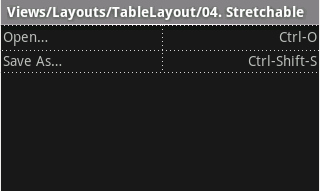
The following sample layout has two rows and two cells in each. The accompanying screenshot shows the result, with cell borders displayed as dotted lines (added for visual effect).
다음에 오는 샘플 레이아웃은 각각 2개의 행과 각각의 행에 2개의 셀을 가지고 있다. 아래에 있는 스크린샷은 그 결과를 보여주며, 점선(시각적 효과를 위해 추가된 것임)으로 셀 경계선을 표시하고 있다.
<?xml version="1.0" encoding="utf-8"?>
<TableLayout xmlns:android="http://schemas.android.com/apk/res/android"
    android:layout_width="fill_parent"
    android:layout_height="fill_parent"
    android:stretchColumns="1">
    <TableRow>
        <TextView
            android:text="@string/table_layout_4_open"
            android:padding="3dip" />
        <TextView
            android:text="@string/table_layout_4_open_shortcut"
            android:gravity="right"
            android:padding="3dip" />
    </TableRow>

    <TableRow>
        <TextView
            android:text="@string/table_layout_4_save"
            android:padding="3dip" />
        <TextView
            android:text="@string/table_layout_4_save_shortcut"
            android:gravity="right"
            android:padding="3dip" />
    </TableRow>
</TableLayout>
|
 |
Columns can be hidden, marked to stretch and fill the available screen space,
or can be marked as shrinkable to force the column to shrink until the table
fits the screen. See the TableLayout reference
documentation for more details.
열은 숨겨질 수도 있고, 확대stretch되도록 마크되어 사용가용한 스크린 공간을 채울 수도 있으며, 또는 테이블이 스크린에 맞춰질 때까지 행이 축소shrink되도록 하기 위해 축소가능shrinkable으로 마크될 수도 있다. 보다 자세한 것에 대해서 TableLayout 레퍼런스 문서를 보아라.
To view sample code, see the Hello TableLayout tutorial.
샘플 코드를 보기 위해서는 Hello TableLayout 튜토리얼을 보아라.
RelativeLayout lets child views specify their
position relative to the parent view or to each other (specified by ID). So you can
align two elements by right border, or make one below another, centered in
the screen, centered left, and so on. Elements are rendered in the order given, so if the first element
is centered in the screen, other elements aligning themselves to that element
will be aligned relative to screen center. Also, because of this ordering, if using XML to specify this layout,
the element that you will reference (in order to position other view objects) must be listed in the XML
file before you refer to it from the other views via its reference ID.
RelativeLayout는 자식child 뷰들의 위치를 부모parent 뷰 또는 상호간(ID에 의해 지정됨)에 상대적으로 지정하게 한다. 그러므로 여러분은 오른쪽 경계선에 두 개의 엘리먼트를 정렬할 수 있고, 또한 하나를 다른 것 아래에, 스크린의 중앙에, 왼쪽 중간 등에 배치할 수 있다. 엘리먼트는 주어진 순서대로 렌더링된다. 그러므로 만약 첫 번째 엘리먼트가 스크린의 중앙에 있고, 이전 엘리먼트에 대해 그것들 스스로를 정렬하는 다른 엘리먼트들은 스크린 중앙에 대해 상대적으로 정렬될 것이다. 또한 이러한 순서 때문에 만약 이런 레이아웃을 지정하기 위해 XML을 사용한다면, 여러분이 (다른 뷰 오브젝트들을 배치하기 위해) 레퍼런스할 엘리먼트는 여러분이 다른 뷰에서 그것의 레퍼런스 ID로 그것을 참조하기 전에 XML 파일에서 나열되어야 한다.
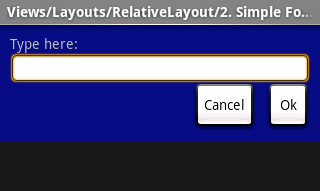
The example below shows an XML file and the resulting screen in the UI. Note that the attributes that refer to relative elements (e.g., layout_toLeft) refer to the ID using the syntax of a relative resource (@id/id).
아래의 예제는 XML 파일과 UI의 스크린 결과를 보여준다. (예를 들어 layout_toLeft 같이) 관련된 엘리먼트를 가리키는 애트리뷰트들은 관련된 리소스 구문(@id/id)을 사용해서 ID를 참조한다는 것에 주목하라.
<?xml version="1.0" encoding="utf-8"?>
<RelativeLayout xmlns:android="http://schemas.android.com/apk/res/android
                android:layout_width="fill_parent"
                android:layout_height="wrap_content"
                android:background="@drawable/blue"
                android:padding="10px" >

    <TextView android:id="@+id/label"
              android:layout_width="fill_parent"
              android:layout_height="wrap_content"
              android:text="Type here:" />

    <EditText android:id="@+id/entry"
              android:layout_width="fill_parent"
              android:layout_height="wrap_content"
              android:background="@android:drawable/editbox_background"
              android:layout_below="@id/label" />

    <Button android:id="@+id/ok"
            android:layout_width="wrap_content"
            android:layout_height="wrap_content"
            android:layout_below="@id/entry"
            android:layout_alignParentRight="true"
            android:layout_marginLeft="10px"
            android:text="OK" />

    <Button android:layout_width="wrap_content"
            android:layout_height="wrap_content"
            android:layout_toLeftOf="@id/ok"
            android:layout_alignTop="@id/ok"
            android:text="Cancel" />
</RelativeLayout>
|
 |
Some of these properties are supported directly by
the element, and some are supported by its LayoutParams member (subclass RelativeLayout
for all the elements in this screen, because all elements are children of a RelativeLayout
parent object). The defined RelativeLayout parameters are: width, height,
below, alignTop, toLeft, padding[Bottom|Left|Right|Top],
and margin[Bottom|Left|Right|Top]. Note that some of these parameters specifically support
relative layout positions their values must be the ID of the element to which you'd like this view laid relative.
For example, assigning the parameter toLeft="my_button" to a TextView would place the TextView to
the left of the View with the ID my_button (which must be written in the XML before the TextView).
이런 속성들 중 일부는 엘리먼트에 의해 직접적으로 지원된다. 그리고 또 다른 일부는 그것의 LayoutParams 멤버(이 스크린에 있는 모든 엘리먼트는 RelativeLayout의 서브클래스이다. 왜냐하면 모든 엘리먼트들은 RelativeLayout 부모(parent) 오브젝트의 자식들(children)이기 때문이다)에 의해 지원된다. 정의되어 있는 RelativeLayout 파라미터들은 width, height, below, alignTop, toLeft, padding[Bottom|Left|Right|Top], 그리고 margin[Bottom|Left|Right|Top]이다. 이들 파라미터들 중 몇 가지는 명확하게 상대적인 레이아웃 위치들을 지원한다는 것에 유념하라 - 그것들의 값은 여러분이 이 뷰가 상대적으로 놓이길 원했던 엘리먼트의 ID이어야 한다. 예를 들어 TextView에 파라미터 toLeft=”@id/my_button” 을 지정하는 것은 그 TextView를 my_button(이것은 XML 안에서 TextView 앞에 작성되어 있어야 한다)이라는 ID를 가진 뷰의 왼쪽에 놓고자 한다는 것이다.
To view this sample code, see the Hello RelativeLayout tutorial.
이 샘플 코드를 보려면 Hello RelativeLayout 튜토리얼을 보아라.
These objects all hold child UI elements. Some provide their own form of a visible UI, while others are invisible structures that only manage the layout of their child views.
이들 오브젝트들 모두는 자식child UI 엘리먼트를 보유하고 있다. 일부는 그들 자신의 시각적인 UI 형태를 제공한다. 반면에 나머지는 오직 그들의 자식child 뷰들의 레이아웃을 관리만하는 시각적이지 않은 구조들이다.
| Class | Description |
|---|---|
FrameLayout |
Layout that acts as a view frame to display a single object. |
Gallery |
A horizontal scrolling display of images, from a bound list. |
GridView |
Displays a scrolling grid of m columns and n rows. |
LinearLayout |
A layout that organizes its children into a single horizontal or vertical row. It creates a scrollbar if the length of the window exceeds the length of the screen. |
ListView |
Displays a scrolling single column list. |
RelativeLayout |
Enables you to specify the location of child objects relative to each other (child A to the left of child B) or to the parent (aligned to the top of the parent). |
ScrollView |
A vertically scrolling column of elements. |
Spinner |
Displays a single item at a time from a bound list, inside a one-row textbox. Rather like a one-row listbox that can scroll either horizontally or vertically. |
SurfaceView |
Provides direct access to a dedicated drawing surface. It can hold child views layered on top of the surface, but is intended for applications that need to draw pixels, rather than using widgets. |
TabHost |
Provides a tab selection list that monitors clicks and enables the application to change the screen whenever a tab is clicked. |
TableLayout |
A tabular layout with an arbitrary number of rows and columns, each cell holding the widget of your choice. The rows resize to fit the largest column. The cell borders are not visible. |
ViewFlipper |
A list that displays one item at a time, inside a one-row textbox. It can be set to swap items at timed intervals, like a slide show. |
ViewSwitcher |
Same as ViewFlipper. |