In an Android application, the user interface is built using View and
ViewGroup objects. There are many types of views and view groups, each of which
is a descendant of the View class.
안드로이드 애플리케이션 안에는 사용자 인터페이스는 뷰View와 뷰그룹ViewGroup 오브젝트를 사용하여 만들어진다. 많은 종류의 뷰와 뷰그룹이 있는데, 그들 각각은 뷰View 클래스의 자손들descendant이다.
View objects are the basic units of user interface expression on the Android platform. The View class serves as the base for subclasses called "widgets," which offer fully implemented UI objects, like text fields and buttons. The ViewGroup class serves as the base for subclasses called "layouts," which offer different kinds of layout architecture, like linear, tabular and relative.
뷰 오브젝트들은 안드로이드 플랫폼 상의 사용자 인터페이스를 표현하는 기본 단위이다. 뷰 클래스는 텍스트 필드와 버튼처럼 완전하게 구현된 UI 오브젝트들을 제공하는 “위젯widget”이라 불리는 서브클래스에 대한 기반을 제공한다. ViewGroup 클래스는 리니어linear, 태뷸러tabular, 그리고 랠러티비relative 같은 다른 종류의 레이아웃 아키텍처를 제공하는 “레이아웃layouts”이라 불리는 서브클래스에 대한 기반을 제공한다.
A View object is a data structure whose properties store the layout parameters and content for a specific rectangular area of the screen. A View object handles its own measurement, layout, drawing, focus change, scrolling, and key/gesture interactions for the rectangular area of the screen in which it resides. As an object in the user interface, a View is also a point of interaction for the user and the receiver of the interaction events.
뷰 오브젝트는 하나의 데이터 구조인데, 그 구조의 속성들에는 스크린의 특정 직사각형 영역에 대한 레이아웃 파라미터들과 컨텐트를 저장하고 있다. 뷰 오브젝트는 그 안에 있는 직사각형의 스크린 영역에 대해 측정measurement, 레이아웃, 그리기drawing, 포커스 변화, 스크롤링, 그리고 키/제스쳐key/gesture 상호작용을 제어한다. 또한 뷰는 사용자 인터페이스 내의 오브젝트처럼 사용자와의 상호작용 지점이며, 해당 상호작용 이벤트의 리시버receiver이다.
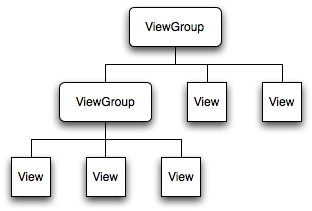
On the Android platform, you define an Activity's UI using a hierarchy of View and ViewGroup nodes, as shown in the diagram below. This hierarchy tree can be as simple or complex as you need it to be, and you can build it up using Android's set of predefined widgets and layouts, or with custom Views that you create yourself.
안드로이드 플랫폼 상에서, 여러분은 다음 페이지에 나오는 그림에서 보여지듯이 뷰와 뷰그룹 노드들의 계층구조를 사용하는 액티비티의 UI를 정의한다. 이 계층구조는 여러분의 필요 형태에 따라 단순하거나 복잡할 수 있으며, 여러분은 안드로이드에 미리 정의된 위젯과 레이아웃의 집합 또는 여러분이 직접 만든 커스텀 뷰를 사용하여 그것을 만들 수 있다.
In order to attach the view hierarchy tree to the screen for rendering, your Activity must call the
setContentView()
액티비티의 스크린에 렌더링을 위한 뷰계층구조 트리를 결합하기 위해서는 액티비티에서 setContentView() 메쏘드를 호출해야 하며, 해당 메쏘드에 뷰 계층구조의 루트root 노드 오브젝트에 대한 레퍼런스reference를 파라미터로 전달해야 한다. 안드로이드 시스템은 이 레퍼런스를 전달받으며, 트리tree에 대한 무효화invalidate, 측정measure, 그리기draw를 위해 그것을 사용한다. 계층구조의 루트root 노드는 자신의 자식들children에게 스스로를 그리도록 요청한다 ? 순서대로 각각의 뷰그룹 노드는 그것의 자식child 뷰 각자가 스스로를 그리도록 호출하는 것에 대한 책임을 진다. 자식들children은 부모parent 안에서의 크기와 위치를 요청할 수 있다. 하지만 그 부모parent 오브젝트는 각각의 자식들children이 그곳에서 얼마나 커질 수 있는가에 대한 최종 결정을 한다. 안드로이드는 계층구조 트리tree의 최상위에서부터 순서대로 여러분의 레이아웃의 엘리먼트element를 분석parse해서 뷰들을 인스턴스화하며, 그리고 그것들을 그것들의 부모parent에 추가한다. 이것들은 순서대로 그려지기 때문에, 만약 엘리먼트의 위치가 겹쳐지는 것이 있다면 마지막에 그려진 것은 이전에 그 공간에 그려진 다른 것들 위에 놓이게 된다.
For a more detailed discussion on how view hierarchies are measured and drawn, read How Android Draws Views.
액티비티의 스크린에 렌더링을 위한 뷰계층구조 트리를 결합하기 위해서는 액티비티에서 setContentView() 메쏘드를 호출해야 하며, 해당 메쏘드에 뷰 계층구조의 루트root 노드 오브젝트에 대한 레퍼런스reference를 파라미터로 전달해야 한다. 안드로이드 시스템은 이 레퍼런스를 전달받으며, 트리tree에 대한 무효화invalidate, 측정measure, 그리기draw를 위해 그것을 사용한다. 계층구조의 루트root 노드는 자신의 자식들children에게 스스로를 그리도록 요청한다 ? 순서대로 각각의 뷰그룹 노드는 그것의 자식child 뷰 각자가 스스로를 그리도록 호출하는 것에 대한 책임을 진다. 자식들children은 부모parent 안에서의 크기와 위치를 요청할 수 있다. 하지만 그 부모parent 오브젝트는 각각의 자식들children이 그곳에서 얼마나 커질 수 있는가에 대한 최종 결정을 한다. 안드로이드는 계층구조 트리tree의 최상위에서부터 순서대로 여러분의 레이아웃의 엘리먼트element를 분석parse해서 뷰들을 인스턴스화하며, 그리고 그것들을 그것들의 부모parent에 추가한다. 이것들은 순서대로 그려지기 때문에, 만약 엘리먼트의 위치가 겹쳐지는 것이 있다면 마지막에 그려진 것은 이전에 그 공간에 그려진 다른 것들 위에 놓이게 된다.
The most common way to define your layout and express the view hierarchy is with an XML layout file. XML offers a human-readable structure for the layout, much like HTML. Each element in XML is either a View or ViewGroup object (or descendent thereof). View objects are leaves in the tree, ViewGroup objects are branches in the tree (see the View Hierarchy figure above).
여러분의 레이아웃을 정의하고 뷰계층구조를 표현하는 가장 일반적인 방법은 XML 레이아웃 파일을 사용하는 것이다. XML은 HTML과 매우 비슷하게 레이아웃에 대한 사람이 읽을 수 있는 구조human-readable structure를 제공한다. XML의 각 엘리먼트는 뷰 또는 뷰그룹 오브젝트이다(또는 그들을 상속받은 자손들이다). 뷰 오브젝트는 트리tree에서 최하단의 노드이며, 뷰그룹 오브젝트는 트리에서 브랜치(branch, 하단에 뷰 또는 뷰그룹을 보유하는 가지)이다(앞의 뷰계층구조 그림을 보라).
The name of an XML element
is respective to the Java class that it represents. So a <TextView> element creates
a TextView in your UI, and a <LinearLayout> element creates
a LinearLayout view group. When you load a layout resource,
the Android system initializes these run-time objects, corresponding to the elements in your layout.
XML 엘리먼트의 이름은 그것이 나타내는 Java 클래스 각각에 해당한다. 그러므로 <TextView> 엘리먼트는 여러분의 UI에 텍스트뷰TextView를 만들고, <LinearLayout> 엘리먼트는 LinearLayout 뷰그룹을 만든다. 여러분이 레이아웃 리소스를 로드할 때, 안드로이드 시스템은 여러분의 레이아웃 내의 엘리먼트에 해당되는 클래스를 런타임 오브젝트로 초기화한다.
For example, a simple vertical layout with a text view and a button looks like this:
예를 들어 하나의 텍스트뷰와 하나의 버튼을 가지는 간단한 버티컬vertical 레이아웃은 다음과 같다.
<?xml version="1.0" encoding="utf-8"?>
<LinearLayout xmlns:android="http://schemas.android.com/apk/res/android"
              android:layout_width="fill_parent"
              android:layout_height="fill_parent"
              android:orientation="vertical" >
    <TextView android:id="@+id/text"
              android:layout_width="wrap_content"
              android:layout_height="wrap_content"
              android:text="Hello, I am a TextView" />
    <Button android:id="@+id/button"
            android:layout_width="wrap_content"
            android:layout_height="wrap_content"
            android:text="Hello, I am a Button" />
</LinearLayout>
Notice that the LinearLayout element contains both the TextView and the Button. You can nest another LinearLayout (or other type of view group) inside here, to lengthen the view hierarchy and create a more complex layout.
LinearLayout 엘리먼트가 TextView와 Button 모두를 포함하고 있다는 것에 주목하라. 뷰 계층구조를 더 길고 더 복잡한 레이아웃으로 만들기 위해 여러분은 이 안에서 또 다른 LinearLayout (또는 다른 유형의 뷰그룹)을 가질 수 있다.
For more on building a UI layout, read Declaring Layout.
UI 레이아웃을 만드는 것에 대한 더 자세한 것은 3장. “사용자 인터페이스”의 “레이아웃 선언하기”를 보라.
Tip: You can also draw View and ViewGroups objects in Java code,
using the addView(View)
Tip: 여러분은 또한 새로운 뷰와 뷰그룹 오브젝트를 동적으로 추가하기 위해, addView(View) 메쏘드를 사용해서 여러분의 Java 코드에서 뷰와 뷰그룹 오브젝트를 그릴 수 있다.
There are a variety of ways in which you can layout your views. Using more and different kinds of view groups, you can structure child views and view groups in an infinite number of ways. Some pre-defined view groups offered by Android (called layouts) include LinearLayout, RelativeLayout, TableLayout, GridLayout and others. Each offers a unique set of layout parameters that are used to define the positions of child views and layout structure.
여러분의 뷰를 레이아웃하는 데에는 다양한 방법이 있다. 더 많은 그리고 다른 종류의 뷰그룹을 사용해서, 여러분은 자식child 뷰와 뷰 그룹을 다양한 방법으로 구조화할 수 있다. 안드로이드에는 (레이아웃이라 불리는) 미리 정의된 몇몇 뷰그룹이 존재한다. 그것은 LinearLayout, RelativeLayout, TableLayout, Grid Layout, 그리고 다른 것들을 포함하고 있다. 이들 각각은 단일한 레이아웃 파라미터 집합을 제공하는데, 이것은 자식child 뷰들의 위치와 레이아웃 구조를 정의하기 위해 사용된다.
To learn about some of the different kinds of view groups used for a layout, read Common Layout Objects.
레이아웃을 위해 사용된 다른 종료의 몇몇 뷰그룹들을 더 배우고자 한다면, “일반적 레이아웃 오브젝트”를 읽어라.
A widget is a View object that serves as an interface for interaction with the user. Android provides a set of fully implemented widgets, like buttons, checkboxes, and text-entry fields, so you can quickly build your UI. Some widgets provided by Android are more complex, like a date picker, a clock, and zoom controls. But you're not limited to the kinds of widgets provided by the Android platform. If you'd like to do something more customized and create your own actionable elements, you can, by defining your own View object or by extending and combining existing widgets.
위젯은 사용자와의 상호작용을 위한 인터페이스를 제공되는 뷰 오브젝트이다. 안드로이드는 버튼button, 체크박스checkbox, 그리고 텍스트 입력 필드text-entry field와 같은 풍부하게 구현된 위젯 집합set을 제공하며, 이것들로 여러분은 자신의 UI를 빠르게 만들 수 있다. 안드로이드에 의해 제공되는 어떤 위젯들은 날짜 설정date picker, 시계clock, 그리고 줌 컨트롤zoom control과 같이 보다 복잡하다. 그러나 여러분은 안드로이드 플랫폼에 의해 제공되는 다양한 종류의 위젯에 제약받지 않는다. 만약 여러분이 좀 더 커스터마이즈된 어떤 것을 하고자 한다면, 여러분 자신의 실행가능한actionable 엘리먼트를 만들어라. 여러분은 커스텀 뷰 오브젝트를 정의하거나 또는 이미 존재하는 위젯을 확장extending하고 조합combining해서 그것을 할 수 있다.
Read more in Building Custom Components.
“커스텀 컴포넌트 만들기”에서 더 많은 것을 읽어라.
For a list of the widgets provided by Android, see the android.widget package.
안드로이드에 의해 제공되는 위젯 목록에 대해서는 android.widget 패키지를 보라.
Once you've added some Views/widgets to the UI, you probably want to know about the user's interaction with them, so you can perform actions. To be informed of UI events, you need to do one of two things:
일단, 여러분이 몇몇 뷰와 위젯을 UI에 추가했다면, 액션을 수행하기 위해 그것들과 사용자 간의 상호작용에 대해 알고자 할 것이다. UI 이벤트를 통보받기 위해 여러분은 아래의 두 가지 중 한 가지를 하는 것이 필요하다.
On<something>().
For example, View.OnClickListener (for handling "clicks" on a View),
View.OnTouchListener (for handling touch screen events in a View), and
View.OnKeyListener (for handling device key presses within a View). So if you want your View
to be notified when it is "clicked" (such as when a button is selected), implement OnClickListener and define
its onClick() callback method (where you perform the action upon click), and register it
to the View with setOnClickListener()onTouchEvent()onTrackballEvent()onKeyDown()Continue reading about handling user interaction with Views in the Handling UI Events document.
이후 나오는 “UI 이벤트 처리” 섹션에서 뷰와 사용자 간의 상호작용을 제어하는 것에 대해 계속 읽어라.
Application menus are another important part of an application's UI. Menus offers a reliable interface that reveals application functions and settings. The most common application menu is revealed by pressing the MENU key on the device. However, you can also add Context Menus, which may be revealed when the user presses and holds down on an item.
애플리케이션 메뉴는 애플리케이션의 UI 중의 또 다른 중요한 일부이다. 메뉴는 애플리케이션 기능과 셋팅setting을 보여주는 신뢰할 만한 인터페이스를 제공한다. 가장 일반적인 애플리케이션 메뉴는 디바이스 상에서 MENU 키를 누름으로써 나타나는 것이다. 하지만 여러분은 사용자가 아이템을 누르고 있을 때 보여질 수 있는 컨텍스트 메뉴Context Menus 또한 추가할 수 있다.
Menus are also structured using a View hierarchy, but you don't define this structure yourself. Instead,
you define the onCreateOptionsMenu()onCreateContextMenu()
메뉴 또한 뷰 계층구조를 사용해서 구조화된다. 하지만, 이러한 구조를 직접 정의할 필요는 없다. 대신에, 액티비티activity에 대한 onCreateOptionsMenu() 또는 onCreateContextMenu() 콜백 메쏘드를 정의하고, 메뉴에 포함되길 원하는 아이템들을 선언하면 된다. 그러면 적절한 시점에, 안드로이드가 자동으로 메뉴를 위해 필요한 뷰 계층구조를 만들 것이고 그곳에 메뉴 아이템 각각을 그릴 것이다.
Menus also handle their own events, so there's no need to register event listeners on the items in your menu.
When an item in your menu is selected, the onOptionsItemSelected()onContextItemSelected()
메뉴는 또한 자기 자신의 이벤트를 처리한다. 그러므로 메뉴 안의 아이템에 대한 이벤트 리스너를 등록할 필요는 없다. 메뉴 안의 아이템이 사용자에 의해 선택되면, 안드로이드 프레임워크framework는 onOptionsItemSelected() 또는 onContextItemSelected() 메쏘드를 호출해 준다.
And just like your application layout, you have the option to declare the items for you menu in an XML file.
그리고 애플리케이션 레이아웃과 같이, XML 파일로 메뉴에 대한 아이템을 선언하는 것도 선택사항으로 가능하다.
Read Creating Menus to learn more.
더 많이 배우려면 이후 나오는 “메뉴 생성하기”를 읽어라.
Once you've grappled the fundamentals of creating a user interface, you can explore some advanced features for creating a more complex application interface.
여러분이 일단 사용자 인터페이스를 생성하는 기초원리를 파악했다면, 보다 복잡한 애플리케이션 인터페이스를 생성하는 것에 대한 약간의 고급 기능을 살펴볼 수도 있다.
Sometimes you'll want to populate a view group with some information that can't be hard-coded, instead, you want to bind your view to an external source of data. To do this, you use an AdapterView as your view group and each child View is initialized and populated with data from the Adapter.
가끔 여러분은 코드상에 직접 기입hard-coded될 수 없는 몇 가지 정보를 보유하는 뷰그룹을 배치하길 원할 수 있다. 즉, 외부 데이터 소스에 뷰를 바인드하고자 할 수 있다. 이것을 하기 위해 사용하는 것이, 뷰그룹과 각각의 자식child 뷰를 초기화하고 어댑터Adapter에서 제공되는 데이터로 그것을 채우는 어댑터뷰AdapterView이다.
The AdapterView object is an implementation of ViewGroup that determines its child views based on a given Adapter object. The Adapter acts like a courier between your data source (perhaps an array of external strings) and the AdapterView, which displays it. There are several implementations of the Adapter class, for specific tasks, such as the CursorAdapter for reading database data from a Cursor, or an ArrayAdapter for reading from an arbitrary array.
어댑터뷰AdapterView 오브젝트는 주어진 어댑터Adapter 오브젝트를 기반으로 그것의 자식child 뷰를 결정하는 뷰그룹ViewGroup의 구현implementation 형태이다. 어댑터Adapter는 데이터 소스(아마도 외부 문자열 배열)와 그것을 표현하는 어댑터뷰AdapterView사이의 전달수단 같은 역할을 한다. 커서Cursor로부터 데이터베이스 데이터를 읽어오기 위한 커서 어댑터CursorAdapter, 또는 임의의 배열로부터 읽어오기 위한 어레이 어댑터ArrayAdapter와 같은 특정 업무를 위한 몇 가지 어댑터Adapter 클래스에 대한 구현 형태들이 있다.
To learn more about using an Adapter to populate your views, read Binding to Data with AdapterView.
아마도 여러분은 표준 위젯의 외형에 대해 만족하지 못할 수도 있다. 그것을 개선하기 위해 여러분 자신의 몇 가지 스타일과 테마를 생성하는 것이 가능하다.
Perhaps you're not satisfied with the look of the standard widgets. To revise them, you can create some of your own styles and themes.
Styles and themes are resources. Android provides some default style and theme resources that you can use, or you can declare your own custom style and theme resources.
스타일과 테마는 리소스들이다. 안드로이드는 여러분이 사용할 수 있는 약간의 디폴트 스타일과 테마 리소스를 제공하며, 또한 자기만의 커스텀 스타일과 테마 리소스를 선언할 수도 있다.
Learn more about using styles and themes in the Applying Styles and Themes document.
“스타일과 테마 적용하기” 문서에서 스타일과 테마를 사용하는 것에 대해 더 배워라.