Android offers a custom 2D graphics library for drawing and animating shapes and images.
The android.graphics.drawable and android.view.animation
packages are where you'll find the common classes used for drawing and animating in two-dimensions.
안드로이드는 쉐이프shape와 이미지를 드로잉하고 애니메이션시키는 커스텀 2D 그래픽 라이브러리를 제공한다. Android.graphics.drawable과 android.view.animation 패키지에서, 여러분은 2차원 그림을 드로잉하고 애니메이션하는데 사용되는 일반적인 클래스를 발견할 수 있다.
This document offers an introduction to drawing graphics in your Android application. We'll discuss the basics of using Drawable objects to draw graphics, how to use a couple subclasses of the Drawable class, and how to create animations that either tween (move, stretch, rotate) a single graphic or animate a series of graphics (like a roll of film).
이 문서는 안드로이드 애플리케이션에서 그래픽을 드로잉하는 것을 소개한다. 우리는 그래픽을 드로잉하기 위해 드로어블Drawable 오브젝트를 사용하는 것에 대한 기본basic과 드로어블Drawable 클래스의 두개의 서브클래스를 사용하는 방법, 그리고 하나의 그래픽을 트윈tween(이동, 확대, 회전)하거나 일련의 그래픽(필름의 롤처럼)에 움직임을 주는 애니메이션을 생성하는 방법에 대해서 논의할 것이다.
A Drawable is a general abstraction for "something that can be drawn."
You'll discover that the Drawable class extends to define a variety of specific kinds of drawable graphics,
including BitmapDrawable, ShapeDrawable,
PictureDrawable, LayerDrawable, and several more.
Of course, you can also extend these to define your own custom Drawable objects that behave in unique ways.
드로어블Drawable은 “그려질 수 있는 어떤 것”에 대한 일반적인 추상화abstraction이다. 여러분은 BitmapDrawable, ShapeDrawable, PictureDrawable, LayerDrawable, 그리고 더 다양한 것들을 포함하여, 특정 종류의 드로어블drawable 그래픽을 정의하기 위해 드로어블Drawable 클래스가 확장된다는 것을 발견할 것이다. 물론 여러분은 고유한 방식으로 동작하는 여러분 자신의 커스텀 드로어블Drawable 오브젝트를 정의하기 위해 이러한 드로어블들을 확장할 수 있다.
There are three ways to define and instantiate a Drawable: using an image saved in your project resouces; using an XML file that defines the Drawable properties; or using the normal class constructors. Below, we'll discuss each the first two techniques (using constructors is nothing new for an experienced developer).
드로어블Drawable을 정의하고 인스턴스화하는 데에는 세 가지 방법이 있다. 여러분의 프로젝트 리소스에 저장된 이미지를 사용하는 방법, 드로어블Drawable 속성properties을 정의하고 있는 XML 파일 사용는 방법, 또는 일반적인 클래스 생성자를 사용하는 방법이 있다. 아래에서 처음 두 가지 방법 각각에 대해 논의할 것이다(숙련된 개발자에게 있어서 생성자를 사용하는 것은 새로울 것이 없다).
A simple way to add graphics to your application is by referencing an image file from your project resources. Supported file types are PNG (preferred), JPG (acceptable) and GIF (discouraged). This technique would obviously be preferred for application icons, logos, or other graphics such as those used in a game.
여러분의 애플리케이션에 그래픽을 추가하는 간단한 방법은 프로젝트 리소스에 있는 이미지 파일을 레퍼런스하는 것이다. 지원되는 파일 타입들은 PNG(선호되는), JPG(수용가능한), 그리고 GIF(좋지않은)이다. 이 기법technique은 애플리케이션 아이콘, 로고, 또는 게임에서 사용되는 것과 같은 다른 그래픽들에서 매우 선호된다.
To use an image resource, just add your file to the res/drawable/ directory of your project.
From there, you can reference it from your code or your XML layout.
Either way, it is referred using a resource ID, which is the file name without the file type
extension (E.g., my_image.png is referenced as my_image).
이미지 리소스를 사용하려면 여러분의 파일을 프로젝트의 res/drawable/ 디렉토리에 추가하기만 하면 된다. 그곳으로부터, 여러분은 코드 또는 XML 레이아웃에서 그것을 레퍼런스할 수 있다. 어떤 방법이든, 그것은 파일 타입 확장자를 제외한 파일 이름으로 된 리소스 ID를 사용하여 레퍼런스된다(예를 들어 my_image.png는 my_image로 레퍼런스 된다).
Note: Image resources placed in res/drawable/ may be
automatically optimized with lossless image compression by the
aapt tool. For example, a true-color PNG that does
not require more than 256 colors may be converted to an 8-bit PNG with a color palette. This
will result in an image of equal quality but which requires less memory. So be aware that the
image binaries placed in this directory can change during the build. If you plan on reading
an image as a bit stream in order to convert it to a bitmap, put your images in the res/raw/
folder instead, where they will not be optimized.
Note: res/drawable/ 에 위치하는 이미지 리소스들은 자동으로 aapt 도구에 의해 무손실 이미지로 압축되어 최적화 된다. 예를 들어 256 컬러 이상을 요구하지 않는 트루컬러 PNG는 컬러 팔레트를 가지는 8-비트 PNG로 변환될 수도 있다. 이것은 동일한 품질의 이미지를 결과로 갖지만, 더 작은 메모리를 요구한다. 그러므로 이 디렉토리에 위치하는 이미지 바이너리들은 빌드하는 동안 변경될 수 있다는 것을 알아라. 만약 여러분이 이미지를 비트맵으로 변환하기 위해 비트 스트림으로 읽을 예정이라면, res/drawable 대신에 여러분의 이미지를 res/raw/ 폴더 안에 놓아라. 그 폴더 안의 이미지들은 최적화되지 않을 것이다.
The following code snippet demonstrates how to build an ImageView that uses an image
from drawable resources and add it to the layout.
아래의 코드 단편snippet은 드로어블drawable 리소스로부터 이미지를 사용하여 이미지뷰를 만들고, 그것을 레이아웃에 추가하는 방법을 보여준다.
LinearLayout mLinearLayout;

protected void onCreate(Bundle savedInstanceState) {
    super.onCreate(savedInstanceState);

    // Create a LinearLayout in which to add the ImageView
    mLinearLayout = new LinearLayout(this);

    // Instantiate an ImageView and define its properties
    ImageView i = new ImageView(this);
    i.setImageResource(R.drawable.my_image);
    i.setAdjustViewBounds(true); // set the ImageView bounds to match the Drawable's dimensions
    i.setLayoutParams(new Gallery.LayoutParams(LayoutParams.WRAP_CONTENT, LayoutParams.WRAP_CONTENT));

    // Add the ImageView to the layout and set the layout as the content view
    mLinearLayout.addView(i);
    setContentView(mLinearLayout);
}
In other cases, you may want to handle your image resource as a
Drawable object.
To do so, create a Drawable from the resource like so:
다른 경우로, 여러분은 이미지 리소스를 드로어블Drawable 오브젝트로 취급하길 원할 수 있다. 그렇게 하기 위해서는, 다음과 같이 리소스로부터 드로어블Drawable을 생성하라.
Resources res = mContext.getResources();
Drawable myImage = res.getDrawable(R.drawable.my_image);
Note: Each unique resource in your project can maintain only one state, no matter how many different objects you may instantiate for it. For example, if you instantiate two Drawable objects from the same image resource, then change a property (such as the alpha) for one of the Drawables, then it will also affect the other. So when dealing with multiple instances of an image resource, instead of directly transforming the Drawable, you should perform a tween animation.
Note: 여러분의 프로젝트에 있는 각각의 고유한 리소스는 여러분이 그것에 대해 얼마나 많은 오브젝트를 인스턴스화 할 지 상관없이, 오직 하나의 상태만을 유지할 수 있다. 예를 들어 여러분이 동일한 이미지 리소스로부터 두 개의 드로어블Drawable 오브젝트를 인스턴스화하고, 그런 다음에 그 드로어블Drawable들 중 하나에 대해 (알파와 같은) 속성을 변경한다면, 그것은 또한 다른 것에도 영향을 미칠 것이다. 그러므로 하나의 리소스로부터 복수개의 인스턴스를 취급할 때, 여러분은 드로어블Drawable을 직접 변형시키는 것 대신에 트윈 애니메이션을 수행해야 한다.
The XML snippet below shows how to add a resource Drawable to an
ImageView in the XML layout (with some red tint just for fun).
아래의 XML 단편은 리소스 드로어블Drawable을 XML 레이아웃에 있는 ImageView에 추가하는 방법을 보여준다(단지 재미를 위해 약간의 빨간 tint를 가짐).
<ImageView
  android:layout_width="wrap_content"
  android:layout_height="wrap_content"
  android:tint="#55ff0000"
  android:src="@drawable/my_image"/>
For more information on using project resources, read about Resources and Assets.
프로젝트 리소스들을 사용하는 것에 대한 더 많은 정보는 4장. “리소스와 에셋”을 보라.
By now, you should be familiar with Android's principles of developing a User Interface. Hence, you understand the power and flexibility inherent in defining objects in XML. This philosophy caries over from Views to Drawables. If there is a Drawable object that you'd like to create, which is not initially dependent on variables defined by your applicaton code or user interaction, then defining the Drawable in XML is a good option. Even if you expect your Drawable to change its properties during the user's experience with your application, you should consider defining the object in XML, as you can always modify properties once it is instantiated.
여러분은 지금쯤 이미 사용자 인터페이스를 개발하는 안드로이드의 원리에 대해 친숙해 있어야 한다. 따라서, 여러분은 XML로 오브젝트를 정의하는 것에 대한 그 고유한 힘과 유연성을 이해하고 있다. 이 철학은 뷰View에서부터 드로어블Drawable에까지 걸쳐서 전해진다. 만약 그곳에 여러분이 생성하고자 하는 드로어블 오브젝트가 있고, 그것이 여러분의 애플리케이션 코드 또는 사용자 상호작용에 의해 정의되는 변수에 초기에 의존적이지 않다면, XML로 드로어블을 정의하는 것은 좋은 선택이다. 비록, 여러분의 애플리케이션을 사용자가 경험하는 동안에, 여러분의 드로어블이 그것의 속성을 변경해야 할 필요가 있을 지라도 여러분은 XML로 오브젝트를 정의하는 것을 고려해야 한다. 왜냐하면, 일단 오브젝트가 한번 인스턴스화되면 여러분이 속성들을 항상 수정할 수 있기 때문이다.
Once you've defined your Drawable in XML, save the file in the res/drawable/ directory of
your project. Then, retrieve and instantiate the object by calling
Resources.getDrawable(), passing it the resource ID
of your XML file. (See the example below.)
일단 여러분이 XML로 드로어블을 정의했다면 그 파일을 프로젝트의 res/drawable/ 디렉토리에 저장하라. 그런 다음에 Resources.getDrawables()을 호출하고, 그것에 여러분의 XML 파일에 대한 리소스 ID를 전달함으로써 오브젝트를 가져와서 인스턴스화하라(아래의 예제를 보라).
Any Drawable subclass that supports the inflate() method can be defined in
XML and instantiated by your application.
Each Drawable that supports XML inflation utilizes specific XML attributes that help define the object
properties (see the class reference to see what these are). See the class documentation for each
Drawable subclass for information on how to define it in XML.
Inflate() 메쏘드를 지원하는 어떠한 드로어블 서브클래스라도 XML로 정의되고 여러분의 애플리케이션에 의해 인스턴스화될 수 있다. XML 인플레이션inflation을 지원하는 각각의 드로어블은 오브젝트 속성 정의를 돕는 특정 XML 애트리뷰트들을 이용한다(이러한 것들에 대한 것을 보려면 해당 클래스 레퍼런스를 참조하라). XML로 그것을 정의하는 방법에 대한 정보에 대해서는 각각의 드로어블 서브클래스의 클래스 문서를 보라.
Here's some XML that defines a TransitionDrawable:
여기에는 TrasitionDrawable을 정의하는 약간의 XML이 있다.
<transition xmlns:android="http://schemas.android.com/apk/res/android">
  <item android:drawable="@drawable/image_expand">
  <item android:drawable="@drawable/image_collapse">
</transition>
With this XML saved in the file res/drawable/expand_collapse.xml,
the following code will instantiate the TransitionDrawable and set it as the content of an ImageView:
res/drawable/expand_collapse.xml 파일로 저장된 이 XML을 사용해서 아래의 코드는 TrasitionDrawable을 인스턴스화 할 것이며, 그것을 이미지뷰의 컨텐트로 지정한다.
Resources res = mContext.getResources();
TransitionDrawable transition = (TransitionDrawable) res.getDrawable(R.drawable.expand_collapse);
ImageView image = (ImageView) findViewById(R.id.toggle_image);
image.setImageDrawable(transition);
Then this transition can be run forward (for 1 second) with:
그런 다음에 이 변화trasition가 (1초 동안) 아래와 같이 앞으로 실행될 수 있다.
transition.startTransition(1000);
Refer to the Drawable classes listed above for more information on the XML attributes supported by each.
각각에 의해 지원하는 XML 애트리뷰트에 대한 더 많은 정보에 대해서는 위에 나열된 드로어블Drawable 클래스들을 참조하라.
When you want to dynamically draw some two-dimensional graphics, a ShapeDrawable
object will probably suit your needs. With a ShapeDrawable, you can programmatically draw
primitive shapes and style them in any way imaginable.
여러분이 동적으로 어떤 2차원 그래픽을 그리기를 원할 때, 쉐이프 드로어블ShapeDrawable 오브젝트는 여러분의 필요에 아마도 잘 맞을 것이다. 쉐이프 드로어블을 사용해서 여러분은 상상할 수 있는 어떠한 방법으로든 프로그램적으로 기본 쉐이프primitive shapes를 그리고, 그것들을 스타일링할 수 있다.
A ShapeDrawable is an extension of Drawable, so you can use one where ever
a Drawable is expected perhaps for the background of a View, set with
setBackgroundDrawable().
Of course, you can also draw your shape as its own custom View,
to be added to your layout however you please.
Because the ShapeDrawable has its own draw() method, you can create a subclass of View that
draws the ShapeDrawable during the View.onDraw() method.
Here's a basic extension of the View class that does just this, to draw a ShapeDrawable as a View:
쉐이프 드로어블ShapeDrawable은 드로어블의 확장이다. 그러므로 여러분은 드로어블이 있을 수 있는 어디에서든 그것을 사용할 수 있다 ? 아마도 뷰의 백그라운드를 위해서는, setBackgroundDrawable()를 사용해서 설정할 수 있다. 물론 여러분은 또한 여러분이 원하는대로 여러분의 레이아웃에 추가되도록 하기 위해 자신만의 커스텀 뷰로써 쉐이프shape를 그릴 수 있다. 쉐이프 드로어블은 자신만의 draw() 메쏘드를 가지고 있기 때문에, 여러분은 View.onDraw() 메쏘드 도중에 쉐이프 드로어블을 그리는 뷰의 서브클래스를 생성할 수 있다. 여기에 하나의 뷰로써 쉐이프 드로어블을 그리기 위해, 단지 아래와 같은 것을 하는 뷰 클래스의 기본적 확장이 있다.
public class CustomDrawableView extends View {
    private ShapeDrawable mDrawable;

    public CustomDrawableView(Context context) {
        super(context);

        int x = 10;
        int y = 10;
        int width = 300;
        int height = 50;

        mDrawable = new ShapeDrawable(new OvalShape());
        mDrawable.getPaint().setColor(0xff74AC23);
        mDrawable.setBounds(x, y, x + width, y + height);
    }

    protected void onDraw(Canvas canvas) {
        mDrawable.draw(canvas);
    }
}
In the constructor, a ShapeDrawable is defines as an OvalShape.
It's then given a color and the bounds of the shape are set. If you do not set the bounds, then the
shape will not be drawn, whereas if you don't set the color, it will default to black.
생성자에서 쉐이프 드로어블은 타원모양OvalShape으로 정의된다. 그리고 컬러가 주어지고 쉐이프shape의 범위가 설정된다. 여러분이 범위를 설정하지 않으면 그 쉐이프는 그려지지 않을 것이다. 그러나 컬러를 설정하지 않으면 디폴트로 검정색이 지정된다.
With the custom View defined, it can be drawn any way you like. With the sample above, we can draw the shape progammatically in an Activity:
정의된 그 커스텀 뷰를 사용해서, 쉐이프는 여러분이 원하는 어떤 방법으로도 그려질 수 있다. 위의 샘플을 사용해서, 우리는 액티비티에서 프로그램적으로 쉐이프shape를 그릴 수 있다.
CustomDrawableView mCustomDrawableView;

protected void onCreate(Bundle savedInstanceState) {
    super.onCreate(savedInstanceState);
    mCustomDrawableView = new CustomDrawableView(this);

    setContentView(mCustomDrawableView);
}
If you'd like to draw this custom drawable from the XML layout instead of from the Activity,
then the CustomDrawable class must override the View(Context, AttributeSet) constructor, which is called when
instantiating a View via inflation from XML. Then add a CustomDrawable element to the XML,
like so:
만약 여러분이 액티비티에서가 아니라 XML 레이아웃으로부터 이 커스텀 드로어블을 그리고자 한다면, View(Context, AttributeSet) 생성자를 오버라이드해야 하며, View 생성자는 XML로부터 인플레이션inflation을 통해 하나의 뷰를 인스턴스화할 때 호출된다. 그 다음에 CustomDrawable 엘리먼트를 다음과 같이 XML에 추가하라.
<com.example.shapedrawable.CustomDrawableView
    android:layout_width="fill_parent"
    android:layout_height="wrap_content"
    />
The ShapeDrawable class (like many other Drawable types in the android.graphics.drawable package)
allows you to define various properties of the drawable with public methods.
Some properties you might want to adjust include
alpha transparency, color filter, dither, opacity and color.
(android.graphics.drawable 패키지에 있는 다른 많은 Drawable 타입들과 같은) 쉐이프 드로어블ShapeDrawable 클래스는 여러분으로 하여금 public 메쏘드들을 사용해서 드로어블의 다양한 속성들을 정의하는 것을 허용한다. 여러분이 조정하고자 하는 몇몇의 속성값으로는 알파 투명도alpha transparency, 컬러 필터color filter, 떨림dither, 불투명opacity, 그리고 컬러color가 있다.
A NinePatchDrawable graphic is a stretchable bitmap image, which Android
will automatically resize to accomodate the contents of the View in which you have placed it as the background.
An example use of a NinePatch is the backgrounds used by standard Android buttons
buttons must stretch to accommodate strings of various lengths. A NinePatch drawable is a standard PNG
image that includes an extra 1-pixel-wide border. It must be saved with the extension .9.png,
and saved into the res/drawable/ directory of your project.
나인패치 드로어블NinePatchDrawble 그래픽은 확대 가능한 비트맵 이미지로, 안드로이드는 여러분이 그것을 배경으로 놓은 뷰의 컨텐츠에 적합하도록 자동으로 크기를 조정할 것이다. 나인패치NinePatch가 사용된 예제는 표준 안드로이드 버튼에서 사용되는 백그라운드들이다. 버튼은 문자열의 가변적 길이에 적합하도록 확대되어야 한다. 나인패치NinePatch 드로어블은 추가적인 1 픽셀 두께의 선border을 포함하는 표준 PNG 이미지이다. 이것은 .9.png 확장자로 저장되어야 하고 프로젝트의 res/drawable 디렉토리에 저장되어야 한다.
The border is used to define the stretchable and static areas of the image. You indicate a stretchable section by drawing one (or more) 1-pixel-wide black line(s) in the left and top part of the border. (You can have as many stretchable sections as you want.) The relative size of the stretchable sections stays the same, so the largest sections always remain the largest.
선border은 이미지의 확대 가능 영역 및 고정 영역을 정의하기 위해 사용된다. 여러분은 왼쪽과 상단 영역의 선border에 하나 (또는 그 이상의) 1픽셀 두께의 검정색 라인(들)을 그려서 확대 가능한 섹션을 가리킨다(여러분이 원하는 만큼의 많은 확대가능한 섹션을 가질 수 있다). 확대 가능한 섹션들의 상대적 크기는 동일하게 유지된다. 그러므로 가장 큰 섹션들은 항상 가장 크게 남게 된다.
You can also define an optional drawable section of the image (effectively, the padding lines) by drawing a line on the right and bottom lines. If a View object sets the NinePatch as its background and then specifies the View's text, it will stretch itself so that all the text fits inside only the area designated by the right and bottom lines (if included). If the padding lines are not included, Android uses the left and top lines to define this drawable area.
여러분은 또한 우측과 하단 라인에 선을 그려서 선택사항인 이미지의 드로어블 섹션(실제로, 패딩 라인)을 정의할 수도 있다. 만약 뷰 오브젝트가 그것의 백그라운드로 나인패치NinePatch를 설정하고, 그런 다음에 뷰의 텍스트를 지정한다면, 그것은 모든 텍스트가 우측과 하단 라인(만약 있다면)에 의해 지정된 영역 내에 맞도록 자기 자신을 확대할 것이다. 만약 패딩 라인이 포함되지 않았다면, 안드로이드는 드로어블 영역을 정의하기 위해 왼쪽과 상단 라인을 사용한다.
To clarify the difference between the different lines, the left and top lines define which pixels of the image are allowed to be replicated in order to strech the image. The bottom and right lines define the relative area within the image that the contents of the View are allowed to lie within.
다른 선들 간의 차이를 명확히 하기 위해서, 왼쪽과 상단 선은 이미지를 확대하기 위해 이미지의 어떤 픽셀들이 복제가 허용되는지를 정의한다. 하단과 우측 선은 뷰의 컨텐츠가 그 내부에 놓이도록 허용되는 이미지 내부의 상대적 영역을 정의한다.
Here is a sample NinePatch file used to define a button:
여기에 버튼을 정의하기 위해 사용된 나인패치NinePatch 샘플이 있다.
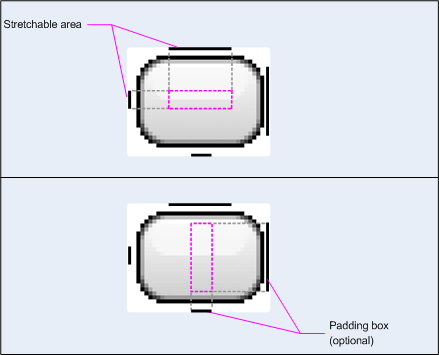
This NinePatch defines one stretchable area with the left and top lines and the drawable area with the bottom and right lines. In the top image, the dotted grey lines identify the regions of the image that will be replicated in order to strech the image. The pink rectangle in the bottom image identifies the region in which the contents of the View are allowed. If the contents don't fit in this region, then the image will be stretched so that they do.
나인패치NinePatch는 좌측과 상단 선으로 확대 가능한 영역을 그리고, 하단과 우측 선으로 드로어블 영역을 정의한다. 위의 이미지에서 점으로 표현된 회색 선들은 이미지를 확대하기 위해 복제될 이미지의 영역을 나타내고 있다. 아래쪽 이미지의 핑크색 직사각형은 뷰의 컨텐츠가 허용된 영역을 나타낸다. 만약 컨텐츠가 이 영역에 맞지 않는다면, 이미지는 맞게 되도록 확대될 것이다.
The Draw 9-patch tool offers an extremely handy way to create your NinePatch images, using a WYSIWYG graphics editor. It even raises warnings if the region you've defined for the stretchable area is at risk of producing drawing artifacts as a result of the pixel replication.
draw9patch 툴tool은 WYSIWYG 그래픽 편집기를 사용해서 여러분의 나인패치NinePatch 이미지들을 생성하는 매우 편리한 방법을 제공한다. 이 도구는 심지어 만약 여러분이 확대 가능한 영역으로 정의한 구역이 픽셀 복사 결과로써 인위적 그림을 만들어내는 위험이 있다면 경고를 나타낸다.
Here's some sample layout XML that demonstrates how to add a NinePatch image to a
couple of buttons. (The NinePatch image is saved as res/drawable/my_button_background.9.png
여기에 나인패치NinePatch 이미지를 두개의 버튼에 추가하는 방법을 보여주는 샘플 레이아웃 XML이 있다(나인패치(NinePatch) 이미지는 res/drawable/my_button_background.9.png로 저장되어 있다).
<Button id="@+id/tiny"
        android:layout_width="wrap_content"
        android:layout_height="wrap_content"
        android:layout_alignParentTop="true"
        android:layout_centerInParent="true"
        android:text="Tiny"
        android:textSize="8sp"
        android:background="@drawable/my_button_background"/>

<Button id="@+id/big"
        android:layout_width="wrap_content"
        android:layout_height="wrap_content"
        android:layout_alignParentBottom="true"
        android:layout_centerInParent="true"
        android:text="Biiiiiiig text!"
        android:textSize="30sp"
        android:background="@drawable/my_button_background"/>
Note that the width and height are set to "wrap_content" to make the button fit neatly around the text.
버튼이 텍스트 둘레에 깨끗하게 맞도록 하기 위해 버튼의 너비와 높이는 “wrap_content”로 설정되어 있다는 점에 유의하라.
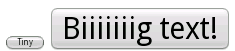
Below are the two buttons rendered from the XML and NinePatch image shown above. Notice how the width and height of the button varies with the text, and the background image stretches to accommodate it.
아래는 위에서 보여진 XML과 나인패치NinePatch 이미지로부터 그려진 두 개의 버튼이다. 버튼의 너비와 높이가 텍스트와 함께 어떻게 바뀌었고, 배경 이미지가 그것에 맞춰지도록 어떻게 확대되었는지를 주목하라.
A tween animation can perform a series of simple transformations (position, size, rotation, and transparency) on
the contents of a View object. So, if you have a TextView object, you can move, rotate, grow, or shrink the text.
If it has a background image, the background image will be transformed along with the text.
The animation package provides all the classes used in a tween animation.
트윈Tween 애니메이션은 뷰 오브젝트의 컨텐츠에 대한 일련의 간단한 변환(위치, 크기, 회전, 그리고 투명도)을 수행할 수 있다. 그러므로 만약 여러분이 텍스트뷰TextView 오브젝트를 가지고 있다면, 여러분은 텍스트를 이동하고, 회전하고, 키우거나 줄일 수 있다. 만약 백그라운드 이미지가 있다면, 백그라운드 이미지는 텍스트에 따라 변환될 것이다. animation 패키지는 트윈 애니메이션에서 사용되는 모든 클래스를 제공한다.
A sequence of animation instructions defines the twen animation, defined by either XML or Android code.
Like defining a layout, an XML file is recommended because it's more readable, reusable, and swappable
than hard-coding the animation. In the example below, we use XML. (To learn more about defining an animation
in your application code, instead of XML, refer to the
AnimationSet class and other Animation subclasses.)
일련의 애니메이션 명령어들은 XML이나 안드로이드 코드에 의해 정의된 트윈 애니메이션을 정의한다. 레이아웃을 정의하는 것과 같이, XML 파일이 애니메이션을 하드 코딩하는 것보다 더 읽기 쉽고, 재사용 가능하고, 그리고 교체 가능하기 때문에 XML 파일이 권장된다. 아래의 예제에서 우리는 XML을 사용한다(XML 대신에 애플리케이션 코드에서 애니메이션을 정의하는 것에 대해 더 알고자 하면 AnimationSet 클래스와 다른 Animation 서브클래스를 참조하라).
The animation instructions define the transformations that you want to occur, when they will occur, and how long they should take to apply. Transformations can be sequential or simultaneous for example, you can have the contents of a TextView move from left to right, and then rotate 180 degrees, or you can have the text move and rotate simultaneously. Each transformation takes a set of parameters specific for that transformation (starting size and ending size for size change, starting angle and ending angle for rotation, and so on), and also a set of common parameters (for instance, start time and duration). To make several transformations happen simultaneously, give them the same start time; to make them sequential, calculate the start time plus the duration of the preceding transformation.
애니메이션 명령어들은 여러분이 발생하길 원하는 변환이 언제 일어날 지, 얼마나 오랫동안 적용되어야 하는지를 정의한다. 변환은 순차적 또는 동시에 일어날 수 있다. 예를 들어 여러분은 텍스트뷰 컨텐츠를 왼쪽에서 오른쪽으로 이동한 다음에 180도 회전할 수 있으며, 또한 여러분은 텍스트의 이동과 회전을 동시에 가질 수 있다. 각각의 변환은 그 변환에 대한 특정 파라미터(크기 변경을 위한 시작 크기와 끝 크기, 회전을 위한 시작 각도와 끝 각도, 그리고 기타 등등)의 집합을 가진다. 그리고 또한 일반적인 파라미터의 집합(예를 들어, 시작 시간과 기간)이 있다. 여러 개의 변환이 동시에 일어나도록 하려면, 그것들에게 동일한 시작 시간을 부여하라. 순차적으로 일어나게 하려면 시작 시간에 선행하는 변환의 기간을 더해서 계산하라.
The animation XML file belongs in the res/anim/ directory of your Android project.
The file must have a single root element: this will be either a single <alpha>,
<scale>, <translate>, <rotate>, interpolator element,
or <set> element that holds groups of these elements (which may include another
<set>). By default, all animation instructions are applied simultaneously.
To make them occur sequentially, you must specify the startOffset attribute, as shown in the example below.
애니메이션 XML 파일은 안드로이드 프로젝트의 res/anim/ 디렉토리에 위치한다. 그 파일은 오직 하나의 루트 엘리먼트를 가져야 한다. 이것은 하나의 <alpha>, <scale>, <translate>, <rotate>, interpolator 엘리먼트, 또는 이러한 엘리먼트들의 그룹들을 가지는 <set> 엘리먼트(이것은 또 다른 <set>을 포함할 지도 모른다) 중 하나가 될 것이다. 디폴트로 모든 애니메이션 명령어는 동시에 적용된다. 순차적으로 일어나도록 하려면 아래 예제에서 보여지는 것처럼 startOffset 애트리뷰트를 지정해야만 한다.
The following XML from one of the ApiDemos is used to stretch, then simultaneously spin and rotate a View object.
ApiDemos 중 하나에 있는 다음의 XML은 확대하기 위해 사용되며, 그런 다음에 뷰 오브젝트를 동시에 돌리고 회전시킨다.
<set android:shareInterpolator="false">
   <scale
          android:interpolator="@android:anim/accelerate_decelerate_interpolator"
          android:fromXScale="1.0"
          android:toXScale="1.4"
          android:fromYScale="1.0"
          android:toYScale="0.6"
          android:pivotX="50%"
          android:pivotY="50%"
          android:fillAfter="false"
          android:duration="700" />
   <set android:interpolator="@android:anim/decelerate_interpolator">
      <scale
             android:fromXScale="1.4"
             android:toXScale="0.0"
             android:fromYScale="0.6"
             android:toYScale="0.0"
             android:pivotX="50%"
             android:pivotY="50%"
             android:startOffset="700"
             android:duration="400"
             android:fillBefore="false" />
      <rotate
             android:fromDegrees="0"
             android:toDegrees="-45"
             android:toYScale="0.0"
             android:pivotX="50%"
             android:pivotY="50%"
             android:startOffset="700"
             android:duration="400" />
   </set>
</set>
Screen coordinates (not used in this example) are (0,0) at the upper left hand corner, and increase as you go down and to the right.
(이 예제에서 사용되지 않은) 스크린 좌표는 왼쪽 상단 쪽 구석에 있는 (0,0)이고, 여러분이 아래와 오른쪽으로 가는 만큼 증가한다.
Some values, such as pivotX, can be specified relative to the object itself or relative to the parent. Be sure to use the proper format for what you want ("50" for 50% relative to the parent, or "50%" for 50% relative to itself).
pivotX와 같은 몇 개의 값들은 오브젝트 그 자신에 상대적으로 또는 부모parent에 상대적으로 지정될 수 있다. 여러분이 원하는 것에 대한 적절한 포맷을 사용하고 있는 지를 확인하라(부모(parent)에 상대적인 50%는 “50”이고 오브젝트 자기 자신에 상대적인 50%는 “50%”이다).
You can determine how a transformation is applied over time by assigning an
Interpolator. Android includes
several Interpolator subclasses that specify various speed curves: for instance,
AccelerateInterpolator tells
a transformation to start slow and speed up. Each one has an attribute value that can be applied in the XML.
여러분은 인터폴레이터Interpolator를 지정해서 시간의 경과에 따라 변환이 적용되는 방법을 결정할 수 있다. 안드로이드는 다양한 속도 곡선을 지정하는 여러 개의 인터폴레이터Interpolator 서브클래스를 포함한다. 예를 들어 AccelerateInterpolator는 천천히 시작해서 속도를 높이는 변환을 가리킨다. 각각은 XML에서 적용될 수 있는 하나의 애트리뷰트 값을 가진다.
With this XML saved as hyperspace_jump.xml in the res/anim/ directory of the
project, the following Java code will reference it and apply it to an ImageView object
from the layout.
프로젝트의 res/anim/ 디렉토리에 hiperspace_jump.xml로 저장된 이 XML을 사용해서, 다음의 Java 코드는 그것을 레퍼런스할 것이며, 그리고 레이아웃의 ImageView 오브젝트에 적용할 것이다.
ImageView spaceshipImage = (ImageView) findViewById(R.id.spaceshipImage);
Animation hyperspaceJumpAnimation = AnimationUtils.loadAnimation(this, R.anim.hyperspace_jump);
spaceshipImage.startAnimation(hyperspaceJumpAnimation);
As an alternative to startAnimation(), you can define a starting time for the animation with
Animation.setStartTime()View.setAnimation()
startAnimation()에 대한 대체물로써, 여러분은 Animation.setStartTime()을 사용해서 애니메이션 시작 시각을 정의할 수 있으며, 그런 다음에 View.setAnimation()으로 View에 애니메이션을 지정할 수 있다.
For more information on the XML syntax, available tags and attributes, see the discussion on animation in the Available Resources.
사용가능한 태크와 애트리뷰트에 대한 XML 구문에 대한 더 많은 정보에 대해서는 4장. “리소스와 에셋”의 “사용가능한 리소스 타입”에 있는 애니메이션에 대한 논의를 참고하라.
Note: Regardless of how your animation may move or resize, the bounds of the View that holds your animation will not automatically adjust to accomodate it. Even so, the animation will still be drawn beyond the bounds of its View and will not be clipped. However, clipping will occur if the animation exceeds the bounds of the parent View.
Note: 여러분의 애니메이션이 얼마나 움직이고 크기가 바뀌었는지와 무관하게, 여러분의 애니메이션을 보유하는 뷰의 경계는 자동으로 그것을 맞추도록 조절되지 않을 것이다. 심지어 그 애니메이션은 여전히 뷰의 경계를 넘어서서 그려질 것이고 잘려지지도 않을 것이다. 하지만 만약 애니메이션이 부모parent 뷰의 경계를 넘어서면 클리핑이 일어날 것이다.
This is a traditional animation in the sense that it is created with a sequence of different
images, played in order, like a roll of film. The AnimationDrawable
class is the basis for frame animations.
이것은 필름의 롤처럼 순서대로 재생되는 일련의 서로 다른 이미지들로 만들어졌다는 점에서 전통적인 애니메이션이다. 애니메이션 드로어블AnimationDrawable 클래스는 프레임 애니메이션의 기본이다.
While you can define the frames of an animation in your code, using the
AnimationDrawable class API, it's more simply accomplished with a single XML
file that lists the frames that compose the animation. Like the tween animation above, the XML file for this kind
of animation belongs in the res/anim/ directory of your Android project. In this case,
the instructions are the order and duration for each frame of the animation.
애니메이션 드로어블AnimationDrawable 클래스 API를 사용해서 여러분이 코드에서 애니메이션의 프레임을 정의할 수 있을지라도, 애니메이션을 구성하는 프레임을 나열하는 XML 파일을 사용해서 더 쉽게 이루어진다. 위에서의 트윈 애니메이션처럼, 이러한 종류의 애니메이션에 대한 XML 파일은 안드로이드 프로젝트의 res/anim/ 디렉토리에 위치한다. 이 경우, 명령어들은 애니메이션 각 프레임에 대한 순서와 기간이다.
The XML file consists of an <animation-list> element as the root node and a series
of child <item> nodes that each define a frame: a drawable resource for the frame and the frame duration.
Here's an example XML file for a frame-by-frame animation:
XML 파일은 루트 노드로써 <animation-list> 엘리먼트와 각각이 프레임(프레임과 프레임 기간에 대한 드로어블 리소스)을 정의하는 일련의 자식child <item> 노드로 구성된다. 여기에 frame-by-frame 애니메이션에 대한 XML 파일 예제가 있다.
<animation-list xmlns:android="http://schemas.android.com/apk/res/android"
    android:oneshot="true">
    <item android:drawable="@drawable/rocket_thrust1" android:duration="200" />
    <item android:drawable="@drawable/rocket_thrust2" android:duration="200" />
    <item android:drawable="@drawable/rocket_thrust3" android:duration="200" />
</animation-list>
This animation runs for just three frames. By setting the android:oneshot attribute of the
list to true, it will cycle just once then stop and hold on the last frame. If it is set false then
the animation will loop. With this XML saved as rocket_thrust.xml in the res/anim/ directory
of the project, it can be added as the background image to a View and then called to play. Here's an example Activity,
in which the animation is added to an ImageView and then animated when the screen is touched:
이 애니메이션은 단 세 개의 프레임으로 실행된다. 리스트의 android:oneshot 애트리뷰트를 참true으로 설정하면, 그것은 단지 한 번만 순환하고 정지해서 마지막 프레임에 멈춰있다. 만약 그것이 거짓false으로 설정된다면, 애니메이션은 반복될 것이다. 프로젝트의 res/anim/ 디렉토리에 rocket_thrust.xml로 저장된 이 XML을 가지고, 그것은 뷰의 백그라운드 이미지에 추가될 수 있으며 그리고 실행되도록 호출될 수 있다. 여기에 애니메이션이 이미지뷰에 추가되어서 스크린이 터치될 때 움직이는 액티비티 예제가 있다.
AnimationDrawable rocketAnimation;

public void onCreate(Bundle savedInstanceState) {
  super.onCreate(savedInstanceState);
  setContentView(R.layout.main);

  ImageView rocketImage = (ImageView) findViewById(R.id.rocket_image);
  rocketImage.setBackgroundResource(R.anim.rocket_thrust);
  rocketAnimation = (AnimationDrawable) rocketImage.getBackground();
}

public boolean onTouchEvent(MotionEvent event) {
  if (event.getAction() == MotionEvent.ACTION_DOWN) {
    rocketAnimation.start();
    return true;
  }
  return super.onTouchEvent(event);
}
It's important to note that the start() method called on the AnimationDrawable cannot be
called during the onCreate() method of your Activity, because the AnimationDrawable is not yet fully attached
to the window. If you want to play the animation immediately, without
requiring interaction, then you might want to call it from the
onWindowFocusChanged()
애니메이션 드로어블AnimationDrawable에 대해서 호출되는 start() 메쏘드는 여러분의 액티비티의 onCreate() 메쏘드안에서 호출될 수 없다는 것을 알고 있는 것이 중요하다. 왜냐하면, 애니메이션 드로어블AnimationDrawable이 아직 완전하게 윈도우와 결합되지 않았기 때문이다. 만약 여러분이 상호작용을 요구하지 않고 애니메이션을 즉시 재생하고자 한다면, 여러분 액티비티의 onWindowFocusChanged() 메쏘드에서 그것을 호출할 수도 있다. onWindowFocusChanged() 메쏘드는 안드로이드가 여러분의 윈도우에 포커스를 줄 때 호출될 것이다.