A dialog is usually a small window that appears in front of the current Activity. The underlying Activity loses focus and the dialog accepts all user interaction. Dialogs are normally used for notifications and short activities that directly relate to the application in progress.
다이얼로그는 통상 현재 액티비티 위에 나타나는 작은 윈도우이다. 그 아래에 놓인 액티비티는 포커스를 잃으며, 해당 다이얼로그는 사용자와의 상호작용을 수용한다. 다이얼로그는 보통 노티피케이션notification과 진행중인 애플리케이션과 직접적으로 연관된 짧은 행위activity들을 위해 사용된다.
The Android API supports the following types of Dialog objects:
안드로이드 API는 다음과 같은 유형의 다이얼로그 오브젝트를 지원한다.
AlertDialogProgressDialogDatePickerDialogTimePickerDialogIf you would like to customize your own dialog, you can extend the
base Dialog object or any of the subclasses listed above and define a new layout.
See the section on Creating a Custom Dialog below.
만약 여러분이 자신의 다이얼로그를 커스터마이즈하고자 한다면, 여러분은 기본 다이얼로그 오브젝트 또는 위에서 나열된 임의의 서브클래스를 확장extension할 수 있으며 새로운 레이아웃을 정의할 수 있다. 그리고 다음에 나오는 “커스텀 다이얼로그 생성하기” 섹션을 보아라.
A dialog is always created and displayed as a part of an Activity.
You should normally create dialogs from within your Activity's
onCreateDialog(int) callback method.
When you use this callback, the Android system automatically manages the state of
each dialog and hooks them to the Activity, effectively making it the "owner" of each dialog.
As such, each dialog inherits certain properties from the Activity. For example, when a dialog
is open, the Menu key reveals the options menu defined for the Activity and the volume
keys modify the audio stream used by the Activity.
다이얼로그는 항상 액티비티의 일부로써 생성되고 보여진다. 여러분은 보통 액티비티의 onCreateDialog(int) 콜백 메쏘드 내에서 다이얼로그를 생성해야 한다. 여러분이 이 콜백을 사용할 때, 안드로이드 시스템은 자동으로 각각의 다이얼로그의 상태를 관리하며, 액티비티가 효과적으로 각각의 다이얼로그의 “소유자owner”가 되도록 액티비티에 다이얼로그를 연결hook한다. 그렇게 함으로써 각각의 다이얼로그는 액티비티의 특정 속성들을 상속한다. 예를 들어 다이얼로그가 오픈 될 때, 메뉴 키는 액티비티를 위해 정의된 메뉴들을 보여주게 되며, 볼륨 키는 액티비티의 의해 사용되는 오디오 스트림을 수정하게 된다.
Note: If you decide to create a dialog outside of the
onCreateDialog() method, it will not be attached to an Activity. You can, however,
attach it to an Activity with setOwnerActivity(Activity).
Note: 만약 여러분이 onCreateDialog() 메쏘드의 외부에서 다이얼로그를 생성하기로 결정한다면, 그것은 액티비티에 첨부(attach)되지 않을 것이다. 하지만 여러분은 setOwnerActivity(Activity)를 사용해서 액티비티에 그것을 첨부할 수 있다.
When you want to show a dialog, call
showDialog(int) and pass it an integer that uniquely identifies the
dialog that you want to display.
여러분이 다이얼로그를 표시하고자 할 때, showDialog(int)를 호출하라. 그리고 그것에 여러분이 표시하고자 하는 다이얼로그의 고유한 식별자인 정수integer를 전달하라.
When a dialog is requested for the first time, Android calls
onCreateDialog(int) from your Activity, which is
where you should instantiate the Dialog. This callback method
is passed the same ID that you passed to showDialog(int).
After you create the Dialog, return the object at the end of the method.
다이얼로그가 최초로 요청될 때, 안드로이드는 여러분 액티비티로부터 onCreate Dialog(int)를 호출하며, 그 메쏘드에서 여러분은 다이얼로그를 인스턴스화해야 한다. 이 콜백 메쏘드는 여러분이 showDialog(int)에 파라미터로 전달했던 것과 동일한 ID를 전달받는다. 그곳에서 다이얼로그를 생성한 후, 그 메쏘드가 끝나는 곳에서 오브젝트를 리턴하라.
Before the dialog is displayed, Android also calls the optional callback method
onPrepareDialog(int, Dialog). Define this method if you want to change
any properties of the dialog each time it is opened. This method is called
every time a dialog is opened, whereas onCreateDialog(int) is only
called the very first time a dialog is opened. If you don't define
onPrepareDialog(), then the dialog will
remain the same as it was the previous time it was opened. This method is also passed the dialog's
ID, along with the Dialog object you created in onCreateDialog().
다이얼로그가 보여지기 전에, 안드로이드는 또한 선택사항으로 onPrepare Dialog(int,Dialog) 콜백 메쏘드를 호출한다. 만약 여러분이 다이얼로그가 오픈될 때마다 다이얼로그의 어떤 속성들properties을 바꾸고자 한다면 이 메쏘드를 정의하라. 이 메쏘드는 다이얼로그가 오픈될 때마다 호출된다. 반면에, onCreateDialog(int)는 오직 다이얼로그가 최초로 오픈될 때만 호출된다. 만약 여러분이 onPrepareDialog()를 정의하지 않는다면, 다이얼로그는 이전에 오픈되었을 때와 똑같은 모습으로 남아 있을 것이다. 이 메쏘드 또한 onCreateDialog()에서 여러분이 생성한 다이얼로그 오브젝트와 함께 다이얼로그의 ID를 전달받는다
The best way to define the onCreateDialog(int) and
onPrepareDialog(int, Dialog) callback methods is with a
switch statement that checks the id parameter that's passed into the method.
Each case should check for a unique dialog ID and then create and define the respective Dialog.
For example, imagine a game that uses two different dialogs: one to indicate that the game
has paused and another to indicate that the game is over. First, define an integer ID for
each dialog:
onCreateDialog(int)와 onPrepareDialog(int, Dialog) 콜백 메쏘드를 정의하기 위한 최선의 방법은 그 메쏘드에 전달되는 id 파라미터를 체크하는 switch 구문을 만드는 것이다. 각각의 case는 고유한 다이얼로그 ID를 체크해야 하며, 그런 다음 각각에 대응되는 다이얼로그를 생성하고 정의하라. 예를 들어 하나는 게임이 멈추었다는 것을 가리키고, 다른 하나는 게임이 종료되었다는 것을 가리키는 두 개의 다른 다이얼로그를 사용하는 게임을 상상해 보라. 우선 각각의 다이얼로그에 대한 정수integer ID를 정의하라.
static final int DIALOG_PAUSED_ID = 0;
static final int DIALOG_GAMEOVER_ID = 1;
Then, define the onCreateDialog(int) callback with a
switch case for each ID:
그런 다음, 각각의 ID에 대한 switch case를 가지고 onCreateDialog(int) 콜백을 정의하라.
protected Dialog onCreateDialog(int id) {
    Dialog dialog;
    switch(id) {
    case DIALOG_PAUSED_ID:
        // do the work to define the pause Dialog
        break;
    case DIALOG_GAMEOVER_ID:
        // do the work to define the game over Dialog
        break;
    default:
        dialog = null;
    }
    return dialog;
}
Note: In this example, there's no code inside the case statements because the procedure for defining your Dialog is outside the scope of this section. See the section below about Creating an AlertDialog, offers code suitable for this example.
Note: 이 예제에서, 각각의 case 안에는 어떤 코드도 없다. 왜냐하면 여러분의 다이얼로그를 정의하는 프로시저는 이 섹션의 범위 밖이기 때문이다. 다음에 나오는 “AlertDialog 생성하기” 섹션을 보라. 이 예제에 대한 적합한 코드를 제공한다.
When it's time to show one of the dialogs, call showDialog(int)
with the ID of a dialog:
다이얼로그 중 하나를 보여줄 때가 되면, 다이얼로그의 ID를 사용해서 show Dialog(int)를 호출하라.
showDialog(DIALOG_PAUSED_ID);
When you're ready to close your dialog, you can dismiss it by calling
dismiss() on the Dialog object.
If necessary, you can also call dismissDialog(int) from the
Activity, which effectively calls dismiss() on the
Dialog for you.
여러분이 다이얼로그를 닫을 준비가 되었을 때, 여러분은 다이얼로그에서 dismiss()를 호출함으로써 그것을 닫을 수 있다. 만약 필요하다면 여러분은 또한 액티비티로부터 dismissDialog(int)를 호출할 수 있으며, 이것은 여러분을 위해 효과적으로 다이얼로그의 dismiss()를 호출한다.
If you are using onCreateDialog(int) to manage the state
of your dialogs (as discussed in the previous section), then every time your dialog is
dismissed, the state of the Dialog
object is retained by the Activity. If you decide that you will no longer need this object or
it's important that the state is cleared, then you should call
removeDialog(int). This will remove any internal references
to the object and if the dialog is showing, it will dismiss it.
만약 여러분이 (앞의 섹션에서 논의했던 대로) 여러분의 다이얼로그의 상태를 관리하기 위해 onCreateDialog(int)를 사용한다면, 다이얼로그 오브젝트의 상태는 다이얼로그가 닫혀질 때마다 액티비티에 의해 보관된다. 만약 여러분이 더 이상 이 오브젝트를 필요로 하지 않는다고 결정한다거나 또는 상태가 제거되는 것이 중요하다면, 그러면 여러분은 removeDialog(int)를 호출해야 한다. 이것은 오브젝트에 대한 모든 내부적인 레퍼런스들을 제거할 것이며, 만약 다이얼로그가 표시되고 있다면 그것을 닫을 것이다.
If you'd like your applcation to perform some procedures the moment that a dialog is dismissed, then you should attach an on-dismiss listener to your Dialog.
만약 여러분의 애플리케이션이 다이얼로그가 닫히는 시점에 어떤 절차를 수행하길 원한다면, 그러면 여러분의 다이얼로그에 on-dismiss 리스너listener 첨부해야 한다.
First define the DialogInterface.OnDismissListener interface.
This interface has just one method,
onDismiss(DialogInterface), which
will be called when the dialog is dismissed.
Then simply pass your OnDismissListener implementation to
setOnDismissListener().
우선 DialogInterface.OnDismissListener 인터페이스를 정의하라. 이 인터페이스는 단지 하나의 메쏘드인 onDismiss(DialogInterface)를 가지는데, 그것은 다이얼로그가 사라질 때 호출될 것이다. 그런 다음 간단하게 여러분이 구현한 OnDismissListener를 setOnDismissListener()에 파라미터로 전달하라.
However, note that dialogs can also be "cancelled." This is a special case that indicates
the dialog was explicitly cancelled by the user. This will occur if the user presses the
"back" button to close the dialog, or if the dialog explicitly calls cancel()
(perhaps from a "Cancel" button in the dialog). When a dialog is cancelled,
the OnDismissListener will still be notified, but if you'd like to be informed that the dialog
was explicitly cancelled (and not dismissed normally), then you should register
an DialogInterface.OnCancelListener with
setOnCancelListener().
하지만 다이얼로그 또한 “취소cancel” 될 수 있다는 것에 주의하라. 이것은 특별한 경우인데, 그것은 다이얼로그가 명시적으로 사용자에 의해 취소되었다는 것을 가리킨다. 이것은 만약 사용자가 다이얼로그Dialog를 닫기 위해 “back” 버튼을 누르거나, 또는 다이얼로그가 명시적으로 cancel()을 호출(아마도 다이얼로그의 “취소cancel”로 부터)한다면 일어난다. 다이얼로그가 취소될 때, onDismisssListener는 여전히 통보를 받는다. 하지만 여러분의 다이얼로그가 명시적으로 취소된 것임(보통의 닫힘이 아님, 역주 : 오직 다이얼로그의 취소 버튼에 의해서만 닫힌 경우)을 알고자 한다면, 여러분은 setOnCancelListener()를 사용해서 DialogInterface.OnCancelListener를 등록해야 한다.
An AlertDialog is an extension of the Dialog
class. It is capable of constructing most dialog user interfaces and is the suggested dialog type.
You should use it for dialogs that use any of the following features:
AlertDialog는 다이얼로그Dialog 클래스의 확장extension이다. 그것은 대부분의 다이얼로그 사용자 인터페이스를 생성할 수 있고 권장되는 다이얼로그 타입이다. 여러분은 다음과 같은 어떤 형태를 사용하는 다이얼로그를 위해서는 AlertDialog를 사용해야 한다.
To create an AlertDialog, use the AlertDialog.Builder subclass.
Get a Builder with AlertDialog.Builder(Context) and
then use the class's public methods to define all of the
AlertDialog properties. After you're done with the Builder, retrieve the
AlertDialog object with create().
AlertDialog를 생성하기 위해서는, AlertDialog.Builder 서브클래스를 사용하라. AlertDialog.Builder(Context)를 사용해서 Builder를 얻어라. 그런 다음에 AlertDialog 속성 전부를 정의하는 그 클래스의 퍼블릭public 메쏘드들을 사용하라. Builder를 사용해서 그것을 한 후, create()를 사용해서 AlertDialog 오브젝트를 얻어라.
The following topics show how to define various properties of the AlertDialog using the
AlertDialog.Builder class. If you use any of the following sample code inside your
onCreateDialog() callback method,
you can return the resulting Dialog object to display the dialog.
다음의 주제들은 AlertDialog.Builder 클래스를 사용해서 다양한 속성의 AlertDialog를 정의하는 방법을 보여준다. 만약 여러분이 onCreateDialog() 콜백 메쏘드 안에서 다음의 샘플 코드 중 어떤 것을 사용한다면, 여러분은 다이얼로그를 표시하는 결과를 초래하는 Dialog 오브젝트를 리턴할 수 있다.
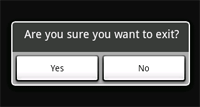
To create an AlertDialog with side-by-side buttons like the one shown in the screenshot to the right,
use the set...Button() methods:
우측의 스크린샷에서 보여지는 것과 같은 나란히 놓인 버튼을 가진 AlertDialog를 생성하기 위해서는, set...Button() 메쏘드들을 사용하라.
AlertDialog.Builder builder = new AlertDialog.Builder(this);
builder.setMessage("Are you sure you want to exit?")
       .setCancelable(false)
       .setPositiveButton("Yes", new DialogInterface.OnClickListener() {
           public void onClick(DialogInterface dialog, int id) {
                MyActivity.this.finish();
           }
       })
       .setNegativeButton("No", new DialogInterface.OnClickListener() {
           public void onClick(DialogInterface dialog, int id) {
                dialog.cancel();
           }
       });
AlertDialog alert = builder.create();
First, add a message for the dialog with
setMessage(CharSequence). Then, begin
method-chaining and set the dialog
to be not cancelable (so the user cannot close the dialog with the back button)
with setCancelable(boolean). For each button,
use one of the set...Button() methods, such as
setPositiveButton(), that accepts the name for the button and a
DialogInterface.OnClickListener that defines the action to take
when the user selects the button.
먼저, setMessage(CharSequence)를 사용해서 다이얼로그를 위한 메시지를 추가하라. 그런 다음 메쏘드-체이닝method-chaining을 시작하고, setCancelable(boolean)을 사용해서 다이얼로그가 취소될 수 없도록(사용자가 back 버튼을 사용해서 다이얼로그를 닫을 수 없도록) 설정하라. 각각의 버튼에 대한 이름과 사용자가 그 버튼을 선택할 때 수행할 액션을 정의하는 DialogInterface.OnClickListener를 파라미터로 받는 setPositiveButton()과 같은 set... Button() 메쏘드들 중 하나를 사용하라.
Note: You can only add one of each button type to the AlertDialog. That is, you cannot have more than one "positive" button. This limits the number of possible buttons to three: positive, neutral, and negative. These names are technically irrelevant to the actual functionality of your buttons, but should help you keep track of which one does what.
Note: 여러분은 AlertDialog에 각각의 버튼 타입 중 하나만을 추가할 수 있다. 즉, 여러분은 “긍정positive” 버튼을 한 개 이상 가질 수 없다. 이것은 사용가능한 버튼의 수를 세 개로 제한한다: 긍정positive, 중립neutral, 그리고 부정negative이 그것이다. 이런 이름들은 버튼의 실제 기능과 기술적인 연관성을 가지지는 않는다. 하지만 그것은 여러분으로 하여금 어느 것이 무엇을 하는지 알아내는 것을 돕는다.
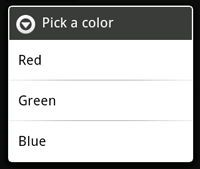
To create an AlertDialog with a list of selectable items like the one shown to the right,
use the setItems() method:
위에서 보여지는 것과 같이 선택가능한 아이템들의 리스트를 가지는 AlertDialog를 생성하기 위해서는 setItems() 메쏘드를 사용하라.
final CharSequence[] items = {"Red", "Green", "Blue"};

AlertDialog.Builder builder = new AlertDialog.Builder(this);
builder.setTitle("Pick a color");
builder.setItems(items, new DialogInterface.OnClickListener() {
    public void onClick(DialogInterface dialog, int item) {
        Toast.makeText(getApplicationContext(), items[item], Toast.LENGTH_SHORT).show();
    }
});
AlertDialog alert = builder.create();
First, add a title to the dialog with
setTitle(CharSequence).
Then, add a list of selectable items with
setItems(), which accepts the array of items to display and a
DialogInterface.OnClickListener that defines the action to take
when the user selects an item.
먼저, setTitle(CharSequence)을 사용해서 다이얼로그에 타이틀을 추가하라. 그런 다음 표시할 아이템의 배열과 사용자가 하나의 아이템을 선택할 때 수행할 액션을 정의하는 DialogInterface.OnclickListener를 파라미터로 받는 setItems()를 사용해서 선택가능한 아이템 리스트를 추가하라.
To create a list of multiple-choice items (checkboxes) or
single-choice items (radio buttons) inside the dialog, use the
setMultiChoiceItems() and
setSingleChoiceItems() methods, respectively.
If you create one of these selectable lists in the
onCreateDialog() callback method,
Android manages the state of the list for you. As long as the Activity is active,
the dialog remembers the items that were previously selected, but when the user exits the
Activity, the selection is lost.
다이얼로그 안에 복수 선택 아이템(체크박스) 또는 단일 선택 아이템(라디오 버튼) 리스트를 생성하기 위해서는, 각각에 해당되는 setMulti ChoiceItems()와 setSingleChoiceItems() 메쏘드를 사용하라. 만약 onCreateDialog() 콜백 메쏘드에 이러한 선택가능한 리스트들 중 하나를 생성한다면, 안드로이드는 여러분을 위해 리스트의 상태를 관리한다. 액티비티가 활성화되어 있는 한, 다이얼로그는 이전에 선택된 아이템을 기억한다. 하지만 사용자가 액티비티를 종료할 때 그 선택 정보는 잃게 된다.
Note: To save the selection when the user leaves or pauses the Activity, you must properly save and restore the setting throughout the Activity Lifecycle. To permanently save the selections, even when the Activity process is completely shutdown, you need to save the settings with one of the Data Storage techniques.
Note: 사용자가 액티비티를 떠나거나 멈출 때 그 선택 정보를 저장하기 위해서, 여러분은 액티비티 생명주기의 곳곳에서 적절하게 설정을 저장하고 복구해야 한다. 그 선택 정보를 영구적으로, 심지어는 액티비티 프로세스가 완전하게 종료될 때 조차도 저장하기 위해서, 여러분은 데이터 저장공간 기술 중 하나를 사용해서 그 설정들을 저장하는 것이 필요하다.
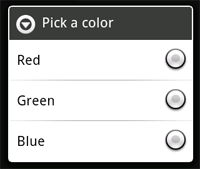
To create an AlertDialog with a list of single-choice items like the one shown to the right,
use the same code from the previous example, but replace the setItems() method with
setSingleChoiceItems():
위에서 보여진 것과 같은 단일 선택 아이템들의 목록을 사용하는 AlertDialog를 생성하기 위해서는, 이전의 예제와 같은 코드를 사용하라. 하지만 setSingle ChoiceItems()로 setItems() 메쏘드를 대체하라.
final CharSequence[] items = {"Red", "Green", "Blue"};

AlertDialog.Builder builder = new AlertDialog.Builder(this);
builder.setTitle("Pick a color");
builder.setSingleChoiceItems(items, -1, new DialogInterface.OnClickListener() {
    public void onClick(DialogInterface dialog, int item) {
        Toast.makeText(getApplicationContext(), items[item], Toast.LENGTH_SHORT).show();
    }
});
AlertDialog alert = builder.create();
The second parameter in the
setSingleChoiceItems() method is an integer value for the checkedItem, which indicates the
zero-based list position of the default selected item. Use "-1" to indicate that no item should be
selected by default.
setSingleChoiceItems()의 두 번째 파라미터는 체크된 아이템에 대한 정수integer 값이다. 그것은 0zero을 베이스로 디폴트로 선택되어야 하는 아이템의 위치를 가리킨다. 디폴트로 어떤 아이템도 선택되지 않게 하기 위해서는 “-1”을 사용하라.
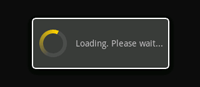
A ProgressDialog is an extension of the AlertDialog
class that can display a progress animation in the form of a spinning wheel, for a task with
progress that's undefined, or a progress bar, for a task that has a defined progression.
The dialog can also provide buttons, such as one to cancel a download.
ProgressDialog는 AlertDialog 클래스의 확장extension이다. 그것은 명확하지 않은 진행상태를 가진 태스크에 대해 회전하는 바퀴wheel로 진행상태 애니메이션을 보여줄 수 있으며, 또한 명확한 진행상태를 가진 태스크에 대해 진행상태바progress bar를 보여줄 수 있다. 이 다이얼로그는 또한 다운로드를 취소하기 위한 것과 같은 버튼들을 제공할 수 있다.
Opening a progress dialog can be as simple as calling
ProgressDialog.show(). For example, the progress dialog shown to the right can be
easily achieved without managing the dialog through the
onCreateDialog(int) callback,
as shown here:
Progress 다이얼로그를 오픈하는 것은 ProgressDialog.show()를 호출하는 것 만큼 간단하게 될 수 있다. 예를 들어 위에 보이는 진행상태 다이얼로그는 아래에서 보여지듯이 onCreateDialog(int) 콜백을 통해 다이얼로그를 관리하지 않고 쉽게 만들어질 수 있다.
ProgressDialog dialog = ProgressDialog.show(MyActivity.this, "",
                        "Loading. Please wait...", true);
The first parameter is the application Context,
the second is a title for the dialog (left empty), the third is the message,
and the last parameter is whether the progress
is indeterminate (this is only relevant when creating a progress bar, which is
discussed in the next section).
첫 번째 파라미터는 애플리케이션 컨텍스트Context이고, 두 번째는 다이얼로그에 대한 타이틀(빈 상태로 남음), 세 번째는 메시지, 그리고 마지막 파라미터는 진행상태의 무한 진행여부(이것은 오직 진행상태 바(progress bar)를 생성할 때와 관련되며, 그것은 다음 섹션에서 논의된다)이다.
The default style of a progress dialog is the spinning wheel. If you want to create a progress bar that shows the loading progress with granularity, some more code is required, as discussed in the next section.
Progress 다이얼로그의 디폴트 스타일은 회전하는 바퀴이다. 만약 여러분이 낟알모양으로 진행상태를 로드하는 것을 표시하는 상태바progress bar를 생성하고자 한다면, 다음 섹션에서 논의되듯이 약간의 코드가 더 요구된다.
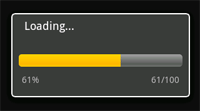
To show the progression with an animated progress bar:
애니메이션되는 진행상태바를 사용해서 진행율progression을 표시하기 위해서는 다음과 같이 하라.
ProgressDialog(Context).setProgressStyle(int) and
set any other properties, such as the message.show() or return the ProgressDialog from the
onCreateDialog(int) callback.setProgress(int) with a value for
the total percentage completed so far or incrementProgressBy(int)
with an incremental value to add to the total percentage completed so far.For example, your setup might look like this:
예를 들어 여러분의 설정은 다음과 같을 수 있다.
ProgressDialog progressDialog;
progressDialog = new ProgressDialog(mContext);
progressDialog.setProgressStyle(ProgressDialog.STYLE_HORIZONTAL);
progressDialog.setMessage("Loading...");
progressDialog.setCancelable(false);
The setup is simple. Most of the code needed to create a progress dialog is actually
involved in the process that updates it. You might find that it's
necessary to create a second thread in your application for this work and then report the progress
back to the Activity's UI thread with a Handler object.
If you're not familiar with using additional
threads with a Handler, see the example Activity below that uses a second thread to
increment a progress dialog managed by the Activity.
그 설정은 간단하다. Progress 다이얼로그를 만들기 위해 필요한 대부분의 코드는 실제로 그것을 업데이트하는 과정에 포함된다. 여러분은 이 작업을 위해 애플리케이션 내에 두 번째 쓰레드를 생성하는 것이 필요하다는 것을 발견할 수 있다. 그런 다음에 핸들러 오브젝트를 사용해서 액티비티의 사용자 인터페이스 쓰레드에게 진행상태를 역으로 레포트하라. 만약 여러분이 핸들러를 가지는 추가적인 쓰레드를 사용하는 것에 익숙하지 않다면 아래의 예제 액티비티를 보라. 그것은 액티비티에 의해 관리되는 Progress 다이얼로그를 증가시키기 위해 두 번째 쓰레드를 사용한다.
 Example ProgressDialog with a second thread
This example uses a second thread to track the progress of a process (which actually just
counts up to 100). The thread sends a Message back to the main
Activity through a Handler each time progress is made. The main Activity then updates the
ProgressDialog.
package com.example.progressdialog;

import android.app.Activity;
import android.app.Dialog;
import android.app.ProgressDialog;
import android.os.Bundle;
import android.os.Handler;
import android.os.Message;
import android.view.View;
import android.view.View.OnClickListener;
import android.widget.Button;

public class NotificationTest extends Activity {
    static final int PROGRESS_DIALOG = 0;
    Button button;
    ProgressThread progressThread;
    ProgressDialog progressDialog;

    /** Called when the activity is first created. */
    public void onCreate(Bundle savedInstanceState) {
        super.onCreate(savedInstanceState);
        setContentView(R.layout.main);

        // Setup the button that starts the progress dialog
        button = (Button) findViewById(R.id.progressDialog);
        button.setOnClickListener(new OnClickListener(){
            public void onClick(View v) {
                showDialog(PROGRESS_DIALOG);
            }
        });
    }

    protected Dialog onCreateDialog(int id) {
        switch(id) {
        case PROGRESS_DIALOG:
            progressDialog = new ProgressDialog(NotificationTest.this);
            progressDialog.setProgressStyle(ProgressDialog.STYLE_HORIZONTAL);
            progressDialog.setMessage("Loading...");
            progressThread = new ProgressThread(handler);
            progressThread.start();
            return progressDialog;
        default:
            return null;
        }
    }

    // Define the Handler that receives messages from the thread and update the progress
    final Handler handler = new Handler() {
        public void handleMessage(Message msg) {
            int total = msg.getData().getInt("total");
            progressDialog.setProgress(total);
            if (total >= 100){
                dismissDialog(PROGRESS_DIALOG);
                progressThread.setState(ProgressThread.STATE_DONE);
            }
        }
    };

    /** Nested class that performs progress calculations (counting) */
    private class ProgressThread extends Thread {
        Handler mHandler;
        final static int STATE_DONE = 0;
        final static int STATE_RUNNING = 1;
        int mState;
        int total;

        ProgressThread(Handler h) {
            mHandler = h;
        }

        public void run() {
            mState = STATE_RUNNING;
            total = 0;
            while (mState == STATE_RUNNING) {
                try {
                    Thread.sleep(100);
                } catch (InterruptedException e) {
                    Log.e("ERROR", "Thread Interrupted");
                }
                Message msg = mHandler.obtainMessage();
                Bundle b = new Bundle();
                b.putInt("total", total);
                msg.setData(b);
                mHandler.sendMessage(msg);
                total++;
            }
        }

        /* sets the current state for the thread,
         * used to stop the thread */
        public void setState(int state) {
            mState = state;
        }
    }
}
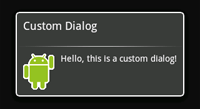
If you want a customized design for a dialog, you can create your own layout
for the dialog window with layout and widget elements.
After you've defined your layout, pass the root View object or
layout resource ID to setContentView(View).
만약 여러분이 다이얼로그에 대한 커스터마이즈된 디자인을 원한다면, 여러분은 레이아웃과 위젯 엘리먼트를 사용해서 다이얼로그 윈도우에 대한 여러분 자신의 레이아웃을 생성할 수 있다. 여러분의 레이아웃을 정의한 후에 루트root 뷰 오브젝트나 레이아웃 리소스 ID를 setContentView(View)에 전달하라.
For example, to create the dialog shown to the right:
예를 들어 위에 보이는 다이얼로그를 생성하기 위해서는 다음과 같이 하라.
custom_dialog.xml:
<LinearLayout xmlns:android="http://schemas.android.com/apk/res/android"
              android:id="@+id/layout_root"
              android:orientation="horizontal"
              android:layout_width="fill_parent"
              android:layout_height="fill_parent"
              android:padding="10dp"
              >
    <ImageView android:id="@+id/image"
               android:layout_width="wrap_content"
               android:layout_height="fill_parent"
               android:layout_marginRight="10dp"
               />
    <TextView android:id="@+id/text"
              android:layout_width="wrap_content"
              android:layout_height="fill_parent"
              android:textColor="#FFF"
              />
</LinearLayout>
This XML defines an ImageView and a TextView
inside a LinearLayout.
Context mContext = getApplicationContext();
Dialog dialog = new Dialog(mContext);

dialog.setContentView(R.layout.custom_dialog);
dialog.setTitle("Custom Dialog");

TextView text = (TextView) dialog.findViewById(R.id.text);
text.setText("Hello, this is a custom dialog!");
ImageView image = (ImageView) dialog.findViewById(R.id.image);
image.setImageResource(R.drawable.android);
After you instantiate the Dialog, set your custom layout as the dialog's content view with
setContentView(int), passing it the layout resource ID.
Now that the Dialog has a defined layout, you can capture View objects from the layout with
findViewById(int) and modify their content.
<LinearLayout xmlns:android="http://schemas.android.com/apk/res/android"
              android:id="@+id/layout_root"
              android:orientation="horizontal"
              android:layout_width="fill_parent"
              android:layout_height="fill_parent"
              android:padding="10dp"
              >
    <ImageView android:id="@+id/image"
               android:layout_width="wrap_content"
               android:layout_height="fill_parent"
               android:layout_marginRight="10dp"
               />
    <TextView android:id="@+id/text"
              android:layout_width="wrap_content"
              android:layout_height="fill_parent"
              android:textColor="#FFF"
              />
</LinearLayout>
이 XML은 LinearLayout안에 ImageView와 TextView를 정의한다.
Context mContext = getApplicationContext();
Dialog dialog = new Dialog(mContext);

dialog.setContentView(R.layout.custom_dialog);
dialog.setTitle("Custom Dialog");

TextView text = (TextView) dialog.findViewById(R.id.text);
text.setText("Hello, this is a custom dialog!");
ImageView image = (ImageView) dialog.findViewById(R.id.image);
image.setImageResource(R.drawable.android);
여러분이 다이얼로그를 인스턴스화한 후, setContentView(int)에 레이아웃 리소스 ID를 파라미터로 전달해서 여러분의 커스텀 레이아웃을 다이얼로그의 컨텐트 뷰로 설정하라. 이제 그 다이얼로그는 정의된 레이아웃을 가지기 때문에 여러분은 findViewById(int)를 사용해서 레이아웃으로부터 뷰 오브젝트를 가져올 수 있으며 그 안의 내용을 수정하라.
A dialog made with the base Dialog class must have a title. If you don't call
setTitle(), then the space used for the title
remains empty, but still visible. If you don't want
a title at all, then you should create your custom dialog using the
AlertDialog class. However, because an AlertDialog is created easiest with
the AlertDialog.Builder class, you do not have access to the
setContentView(int) method used above. Instead, you must use
setView(View). This method accepts a View object,
so you need to inflate the layout's root View object from
XML.
베이스 다이얼로그Dialog 클래스를 사용해서 만들어진 다이얼로그는 타이틀을 가져야 한다. 만약 여러분이 setTitle()을 호출하지 않는다면, 그 공간은 타이틀이 비어 있기는 하지만 여전히 빈 상태로 보여지게 된다. 만약 여러분이 타이틀을 전혀 원하지 않는다면, 여러분은 AlertDialog 클래스를 사용해서 여러분의 커스텀 다이얼로그를 생성해야 한다. 하지만 AlertDialog는 AlertDialog.Bulder 클래스를 가지고 매우 쉽게 생성되기 때문에, 여러분은 위에서 사용된 setContentView(int) 메쏘드에 접근할 필요는 없다. 대신 여러분은 setView(View)를 사용해야 한다. 이 메쏘드는 뷰 오브젝트를 받아들인다. 그러므로 여러분은 XML 레이아웃의 루트root 뷰 오브젝트를 인플레이트inflate하는 것이 필요하다.
To inflate the XML layout, retrieve the LayoutInflater with
getLayoutInflater()
(or getSystemService()),
and then call
inflate(int, ViewGroup), where the first parameter
is the layout resource ID and the second is the ID of the root View. At this point, you can use
the inflated layout to find View objects in the layout and define the content for the
ImageView and TextView elements. Then instantiate the AlertDialog.Builder and set the
inflated layout for the dialog with setView(View).
XML 레이아웃을 인플레이트 하기 위해서는, getLayoutInfalter()(또는 get SystemService())를 사용해서 LayoutInflater를 얻어라. 그리고 그런 다음에 inflate(int, ViewGroup)을 호출하라. 이것의 첫 번째 파라미터는 레이아웃 리소스 ID이며 두 번째는 루트root 뷰의 ID이다. 이 시점에서, 여러분은 그 레이아웃에서 뷰 오브젝트를 찾기 위해 인플레이트된 레이아웃을 사용할 수 있다. 그리고 ImageView와 TextView에 대한 내용을 정의하라. 그런 다음에 AlertDialog.Builder를 인스턴스화하고 setView(View)를 사용해서 다이얼로그에 대한 인플레이트inflate된 레이아웃을 지정하라.
Here's an example, creating a custom layout in an AlertDialog:
여기에 AlertDialog에 커스텀 레이아웃을 생성하는 예제가 있다.
AlertDialog.Builder builder;
AlertDialog alertDialog;

Context mContext = getApplicationContext();
LayoutInflater inflater = (LayoutInflater) mContext.getSystemService(LAYOUT_INFLATER_SERVICE);
View layout = inflater.inflate(R.layout.custom_dialog,
                               (ViewGroup) findViewById(R.id.layout_root));

TextView text = (TextView) layout.findViewById(R.id.text);
text.setText("Hello, this is a custom dialog!");
ImageView image = (ImageView) layout.findViewById(R.id.image);
image.setImageResource(R.drawable.android);

builder = new AlertDialog.Builder(mContext);
builder.setView(layout);
alertDialog = builder.create();
Using an AlertDialog for your custom layout lets you take advantage of built-in AlertDialog features like managed buttons, selectable lists, a title, an icon and so on.
여러분의 커스텀 레이아웃을 위해 AlertDialog를 사용하는 것은, 여러분에게 관리되는managed 버튼, 선택가능한selectable 리스트, 타이틀, 아이콘 등과 같은 내장된built-in AlertDialog 특징들의 장점을 이용 가능하게 한다.
For more information, refer to the reference documentation for the
Dialog and AlertDialog.Builder
classes.
더 많은 정보에 대해서는, Dialog와 AlertDialog.Builder 클래스들에 대한 레퍼런스 문서를 참고하라.