Menus are an important part of any application. They provide familiar interfaces that reveal application functions and settings. Android offers an easy programming interface for developers to provide standardized application menus for various situations.
메뉴는 모든 애플리케이션의 중요한 부분이다. 그들은 애플리케이션 기능과 셋팅setting을 보여주는 익숙한 인터페이스를 제공한다. 안드로이드는 다양한 상황에 대한 표준화된 애플리케이션 메뉴를 제공하기 위해, 개발자를 위한 손쉬운 프로그래밍 인터페이스를 제공한다.
Android offers three fundamental types of application menus:
안드로이드는 세 가지의 기본적 유형의 애플리케이션 메뉴를 제공한다.

The Options Menu is opened by pressing the device MENU key. When opened, the Icon Menu is displayed, which holds the first six menu items. If more than six items are added to the Options Menu, then those that can't fit in the Icon Menu are revealed in the Expanded Menu, via the "More" menu item. The Expanded Menu is automatically added when there are more than six items.
옵션 메뉴는 디바이스 MENU 키를 누름으로써 오픈된다. 오픈될 때 아이콘icon 메뉴가 보여지는데, 그것은 최초 여섯 개의 메뉴 아이템을 보유하고 있다. 만약에 여섯 개 이상의 아이템이 옵션 메뉴에 추가되면, 아이콘icon 메뉴 안에 맞춰지지 않는 메뉴 아이템은 “More” 메뉴 아이템을 통해 확장expanded 메뉴에서 표시된다. 확장expanded 메뉴는 여섯 개 이상의 아이템이 있을 때 자동으로 추가된다.
The Options Menu is where you should include basic application functions and any necessary navigation items (e.g., to a home screen or application settings). You can also add Submenus for organizing topics and including extra menu functionality.
옵션 메뉴는 여러분이 기본적인 애플리케이션의 기능과 임의로 필요한 네비게이션 아이템(예를 들어 홈스크린이나 애플리케이션 설정으로 이동)을 포함시켜야 하는 곳이다. 여러분은 또한 토픽topic을 구성하고 여분의 메뉴 기능을 포함하기 위해 서브메뉴Submenus를 추가할 수 있다.
When this menu is opened for the first time,
the Android system will call the Activity onCreateOptionsMenu()Menu object given to you. You can populate the menu by
inflating a menu resource that was defined in XML, or by calling
add()MenuItem, and returns the
newly created object to you. You can use the returned MenuItem to set additional properties like
an icon, a keyboard shortcut, an intent, and other settings for the item.
이 메뉴가 최초 시점에 오픈될 때, 안드로이드 시스템은 해당 액티비티의 onCreateOptionsMenu() 콜백 메쏘드를 호출할 것이다. 여러분의 액티비티에서 이 메쏘드를 오버라이드하고, 그 메쏘드에 파라미터로 전달되는 메뉴Menu 오브젝트를 채워라populate. 여러분은 XML로 정의된 메뉴 리소스를 인플레이트inflate시키거나 또는 여러분이 메뉴 안에 보유하고 싶은 각각의 아이템에 대해 add()를 호출함으로써 메뉴를 채울 수 있다. 이 메쏘드는 메뉴아이템MenuItem을 추가하며, 여러분에게 새롭게 생성된 그 오브젝트를 리턴한다. 여러분은 아이콘, 키보드 숏컷shortcut, 인텐트, 그리고 아이템에 대한 또 다른 설정과 같은 추가적인 속성들을 설정하기 위해 리턴된 메뉴아이템MenuItem을 사용할 수 있다.
There are multiple add()
여러 개의 add() 메쏘드들이 있다. 보통 여러분은 itemId 아규먼트argument를 받아들이는 것을 사용하고 싶을 것이다. 이것은 여러분이 콜백 메쏘드에서 아이템을 식별할 수 있게 하는 고유한 정수integer이다.
When a menu item is selected from the Options Menu, you will recieve a callback to the
onOptionsItemSelected()MenuItem that has been selected. You can identify the item by requesting the
itemId, with getItemId()add() method. Once you identify
the menu item, you can take the appropriate action.
옵션 메뉴에서 메뉴아이템이 선택될 때, onOptionsItemSelected() 메쏘드가 여러분의 액티비티에서 콜백 될 것이다. 이 콜백은 선택된 메뉴아이템MenuItem을 여러분에게 파라미터로 전달한다. 여러분은 add() 메쏘드에 할당된 정수integer를 리턴해 주는 getItemId()를 사용해서 해당 itemId를 요청함으로써 아이템을 식별할 수 있다. 일단 여러분이 메뉴 아이템을 식별하면, 여러분은 적절한 액션을 취할 수 있다.
Here's an example of this procedure, inside an Activity, wherein we create an Options Menu and handle item selections:
이러한 프로시저의 예제가 여기에 있다. 액티비티 안에서 옵션 메뉴 를 생성하고 아이템 선택을 제어하는 예제이다.
/* Creates the menu items */
public boolean onCreateOptionsMenu(Menu menu) {
    menu.add(0, MENU_NEW_GAME, 0, "New Game");
    menu.add(0, MENU_QUIT, 0, "Quit");
    return true;
}

/* Handles item selections */
public boolean onOptionsItemSelected(MenuItem item) {
    switch (item.getItemId()) {
    case MENU_NEW_GAME:
        newGame();
        return true;
    case MENU_QUIT:
        quit();
        return true;
    }
    return false;
}
The add() method used in this sample takes four arguments:
groupId, itemId, order, and title.
The groupId allows you to associate this menu item with a group of other items
(more about Menu groups, below) in
this example, we ignore it. itemId is a unique integer that we give the
MenuItem so that can identify it in the next callback. order allows us to
define the display order of the item by default, they are displayed by the
order in which we add them. title is, of course, the name that goes on the
menu item (this can also be a
string resource,
and we recommend you do it that way for easier localization).
위의 예제에서 사용된 add() 메쏘드는 groupId, itemId, order, 그리고 title이라는 네 개의 아규먼트를 가지고 있다. groupId는 여러분이 이 메뉴 아이템을 다른 아이템의 그룹과 결합시키는 것을 가능하게 한다(Menu groups에 대한 자세한 것은 아래에 있다) ? 위의 예제에서, 우리는 그것을 무시한다. itemId는 우리가 다음번 콜백에서 아이템을 식별할 수 있도록 메뉴아이템MenuItem에 부여한 고유한 정수integer이다. order는 우리가 아이템의 표시 순서를 정의하는 것을 가능하게 한다 ? 디폴트로 그것들은 추가된 순서대로 표시된다. title은 당연히 메뉴 아이템에 제공하는 이름이다(이것은 또한 문자열 리소스일 수도 있으며, 우리는 여러분이 더 쉽게 로컬라이제이션localization을 할 수 있는 이 방법을 권장한다).
Tip: If you have several menu items that can be grouped together with a title, consider organizing them into a Submenu.
Tip: 만약 여러분이 타이틀과 함께 그룹화될 수 있는 몇 개의 메뉴 아이템을 가지고 있다면, 서브메뉴로 그것들을 배치하는 것을 고려하라.
Icons can also be added to items that appears in the Icon Menu with
setIcon()
아이콘은 또한 setIcon()를 사용해서 아이콘 메뉴에 나타나는 아이템에 추가될 수 있다. 예를 들어 다음과 같다.
menu.add(0, MENU_QUIT, 0, "Quit")
    .setIcon(R.drawable.menu_quit_icon);
If you want to sometimes re-write the Options Menu as it is opened, override the
onPrepareOptionsMenu()onCreateOptionsMenu() callback. This is useful if you'd like to add or remove
menu options depending on the current state of an application or game.
만약 여러분이 가끔 오픈된 옵션 메뉴를 다시 작성하고자 한다면, 메뉴가 오픈될 때마다 호출되는 onPrepareOptionsMenu() 메쏘드를 오버라이드 하라. 이것은 onCreateOptionsMenu() 콜백처럼 여러분에게 메뉴Menu 오브젝트를 파라미터로 전달할 것이다. 이것은 여러분이 애플리케이션 또는 게임game의 현재 상태에 의존적인 메뉴 옵션들을 추가하거나 제거하고자 할 때 유용하다.
Note: When changing items in the menu, it's bad practice to do so based on the currently selected item. Keep in mind that, when in touch mode, there will not be a selected (or focused) item. Instead, you should use a Context Menu for such behaviors, when you want to provide functionality based on a particular item in the UI.
Note: 메뉴에 있는 아이템을 바꿀 때, 현재 선택된 아이템에 기반해서 하는 것은 나쁜 사례이다. 터치 모드일 때는 선택된 (또는 포커스 된) 아이템이 없다는 것을 유념하라. 대신 여러분이 UI에 있는 특정 아이템에 기반한 기능을 제공하고 싶을 때는, 그런 동작을 위한 컨텍스트 메뉴(Context Menu)를 이용해야 한다.
The Android context menu is similar, in concept, to the menu revealed with a "right-click" on a PC.
When a view is registered to a context menu,
performing a "long-press" (press and hold for about two seconds) on the object
will reveal a floating menu that provides functions relating to that item.
Context menus can be registered to any View object,
however, they are most often used for items in a
ListView, which helpfully indicates the presence of the context menu
by transforming the background color of the ListView item when pressed.
(The items in the phone's contact list offer an example of this feature.)
안드로이드 컨텍스트 메뉴는 PC에서 마우스 우측 버튼을 클릭할 때 보여지는 메뉴와 개념적으로 유사하다. 뷰가 컨텍스트 메뉴에 등록되어 있을 때, 그 오브젝트 를 “길게 누르는 것long-press”(대략 2초 정도 누르고 있으면)을 수행하면 그 아이템과 관련된 기능을 제공하는 떠 있는floating 메뉴가 나타날 것이다. 컨텍스트 메뉴는 어떤 뷰 오브젝트에든 등록될 수 있다. 하지만 그것은 리스트뷰ListView 아이템이 눌려질 때, 그것의 배경색을 바꿈으로써 컨텍스트 메뉴의 존재를 쉽게 나타내 주는 리스트뷰Listview에서 매우 자주 사용된다(폰의 컨택contact 리스트의 아이템은 이런 기능의 예제를 제공한다).
Note: Context menu items do not support icons or shortcut keys.
Note: 컨텍스트 메뉴 아이템은 아이콘 또는 숏컷(shortcut) 키를 지원하지 않는다.
To create a context menu, you must override the Activity's context menu callback methods:
onCreateContextMenu()onContextItemSelected()onCreateContextMenu() callback method, you can add menu items using one of the
add()ContextMenu for the View, with
registerForContextMenu()
컨텍스트 메뉴를 만들기 위해, 여러분은 액티비티의 컨텍스트Context 메뉴 콜백 메쏘드인, onCreateContextMenu()와 onContextItemSelected()를 오버라이드 해야 한다. onCreateContextMenu() 콜백 메쏘드 안에서, 여러분은 add() 메쏘드들 중 하나를 사용하거나 또는 XML로 정의된 메뉴 리소스를 인플레이트inflate함으로써 메뉴 아이템들을 추가할 수 있다. 그리고 나서, registerForContextMenu()를 사용해서 뷰View에 대한 컨텍스트 메뉴ContextMenu를 등록하라.
For example, here is some code that can be used with the Notepad application to add a context menu for each note in the list:
예를 들어 여기에 리스트 상의 각 노트에 대해 컨텍스트 메뉴를 추가하는 노트패드 애플리케이션에서 사용될 수 있는 약간의 코드가 있다.
public void onCreateContextMenu(ContextMenu menu, View v,
                                ContextMenuInfo menuInfo) {
  super.onCreateContextMenu(menu, v, menuInfo);
  menu.add(0, EDIT_ID, 0, "Edit");
  menu.add(0, DELETE_ID, 0,  "Delete");
}

public boolean onContextItemSelected(MenuItem item) {
  AdapterContextMenuInfo info = (AdapterContextMenuInfo) item.getMenuInfo();
  switch (item.getItemId()) {
  case EDIT_ID:
    editNote(info.id);
    return true;
  case DELETE_ID:
    deleteNote(info.id);
    return true;
  default:
    return super.onContextItemSelected(item);
  }
}
In onCreateContextMenu(), we are given not only the ContextMenu to
which we will add MenuItems, but also the View
that was selected and a ContextMenuInfo object,
which provides additional information about the object that was selected.
In this example, nothing special is done in onCreateContextMenu() just
a couple items are added as usual. In the onContextItemSelected()
callback, we request the AdapterContextMenuInfo
from the MenuItem, which provides information about the currently selected item.
All we need from
this is the list ID for the selected item, so whether editing a note or deleting it,
we find the ID with the AdapterContextMenuInfo.info field of the object. This ID
is passed to the editNote() and deleteNote() methods to perfrom
the respective action.
onCreateContextMenu()에서, 우리는 메뉴아이템MenuItems을 추가할 ContextMenu을 얻을 수 있을 뿐만 아니라 선택된 뷰와 선택된 오브젝트에 대한 추가적인 정보를 제공하는 ContextMenuInfo 오브젝트를 얻게 된다. 위 예제에서는, onCreateContextMenu()에서 아무런 특별한 것도 수행되지 않는다 - 다만 통상적인 아이템 한 쌍이 추가되었다. onContextItemSelected() 콜백에서, 우리는 MenuItem으로 부터 AdapterContextMenuInfo를 요청하며 그것은 현재 선택된 아이템에 대한 정보들을 제공한다. 우리가 이것으로부터 필요로 하는 모든 것은 선택된 아이템에 대한 리스트 ID이다. 그러므로 노트를 편집하든 또는 그것을 삭제하던 간에, 우리는 오브젝트의 AdapterContextMenuInfo.info 필드에서 그 ID를 찾는다. 이 ID는 대응되는 액션을 수행하기 위한 editNote()와 deleteNote() 메쏘드에 전달된다.
Now, to register this context menu for all the items in a ListView,
we pass the entire ListView to the
registerForContextMenu(View)
이제 리스트뷰ListView에 있는 모든 아이템에 이 컨텍스트 메뉴를 등록하기 위해, 우리는 registerForContextMenu(View) 메쏘드에 전체 리스트뷰ListView를 전달한다.
registerForContextMenu(getListView());
Remember, you can pass any View object to register a context menu. Here,
getListView()ListActivity. As such, each item
in the list is registered to this context menu.
컨텍스트 메뉴를 등록하기 위해, 여러분이 어떤 뷰 오브젝트든 전달할 수 있다는 것을 기억하라. 위에서 getListView()는 노트패드Notepad 애플리케이션의 ListActivity에서 사용된 ListView 오브젝트를 리턴한다. 따라서 그 리스트 안의 각 아이템들은 이 컨텍스트 메뉴에 등록된다.
A sub menu can be added within any menu, except another sub menu. These are very useful when your application has a lot of functions that may be organized in topics, like the items in a PC application's menu bar (File, Edit, View, etc.).
서브 메뉴는 또 다른 서브 메뉴를 제외한 어떤 메뉴에든 추가될 수 있다. 이것은 여러분의 애플리케이션이 PC 애플리케이션의 메뉴 바(파일,수정,보기 등)에 있는 아이템들처럼 토픽 별로 구성될 수 있는 많은 기능들을 가질 때 매우 유용하다.
A sub menu is created by adding it to an existing Menu
with addSubMenu()SubMenu object (an extension of Menu).
You can then add additional items to this menu, with the normal routine, using
the add()
서브 메뉴는 addSubMenu()를 사용해서 기존에 있는 메뉴에 그것을 추가함으로써 만들어진다. 이것은 SubMenu 오브젝트(Menu를 상속받는 오브젝트)를 리턴한다. 그 때 여러분은 add() 메쏘드를 사용해서 일반적인 절차대로 이 메뉴에 추가적인 아이템을 추가할 수 있다. 예를 들어 다음과 같다.
public boolean onCreateOptionsMenu(Menu menu) {
  boolean result = super.onCreateOptionsMenu(menu);

  SubMenu fileMenu = menu.addSubMenu("File");
  SubMenu editMenu = menu.addSubMenu("Edit");
  fileMenu.add("new");
  fileMenu.add("open");
  fileMenu.add("save");
  editMenu.add("undo");
  editMenu.add("redo");

  return result;
}
Callbacks for items selected in a sub menu are made to the parent menu's callback method.
For the example above, selections in the sub menu will be handled by the
onOptionsItemSelected() callback.
서브 메뉴에서 선택된 아이템에 대한 콜백은 부모parent 메뉴의 콜백 메쏘드로 만들어진다. 위의 예제에서, 서브 메뉴에서 사용자에 의한 메뉴 아이템의 선택은 onOptionsItemSelected() 콜백에 의해서 처리될 것이다.
You can also add Submenus when you define the parent menu in XML.
여러분은 또한 XML에 부모parent 메뉴를 정의할 때 서브메뉴Submenus를 추가할 수 있다.
Just like Android UI layouts, you can define application menus in XML, then inflate them
in your menu's onCreate...() callback method. This makes your application code cleaner and
separates more interface design into XML, which is easier to visualize.
여러분은 마치 안드로이드 UI 레이아웃처럼, XML로 애플리케이션 메뉴를 정의할 수 있다. 그런 다음에 여러분의 메뉴 onCreate...() 콜백 메쏘드에서 그것들을 인플레이트inflate하라. 이것은 여러분의 애플리케이션 코드를 더욱 깨끗하게 만들고 더 많은 인터페이스 디자인을 XML로 분리시키며, 이는 시각화하기visualize가 더 쉽다.
To start, create a new folder in your project res/ directory called menu.
This is where you should keep all XML files that define your application menus.
이 방식을 사용하기 위해서는, 우선 여러분 프로젝트의 res/ 디렉토리에 menu 이름의 신규 폴더를 만들어라. 이곳이 애플리케이션 메뉴를 정의한 모든 XML 파일이 보관되어야 하는 곳이다.
In a menu XML layout, there are
three valid elements: <menu>, <group> and <item>. The
item and group elements must be children of a menu, but item
elements may also be the children of a group, and another menu element may be the child
of an item (to create a Submenu). Of course, the root node of any file
must be a menu element.
메뉴 XML 레이아웃에는 세 개의 유효한 엘리먼트가 있다. <menu>, <group>, 그리고 <item>이 그것이다. item과 group 엘리먼트는 menu의 자식들children이 되어야 한다. 하지만 item 엘리먼트 또한 group의 자식들children이 될 수 있으며, 그리고 또 다른 menu 엘리먼트가 (서브메뉴를 만들기 위해) item의 자식child이 될 수 있다. 물론, 모든 파일의 루트root 노드는 menu 엘리먼트여야 한다.
As an example, we'll define the same menu created in the Options Menu section,
above. We start with an XML file named options_menu.xml inside the res/menu/ folder:
하나의 예제로, 우리는 위의 옵션 메뉴 섹션에서 만들었던 것과 같은 메뉴를 정의할 것이다. 우리는 res/menu/ 폴더 안에 options_menu.xml 이라는 이름의 XML 파일을 가지고 시작한다.
<menu xmlns:android="http://schemas.android.com/apk/res/android">
    <item android:id="@+id/new_game"
          android:title="New Game" />
    <item android:id="@+id/quit"
          android:title="Quit" />
</menu>
Then, in the onCreateOptionsMenu() method, we inflate this resource using
MenuInflater.inflate()
그리고 나서 onCreateOptionsMenu() 메쏘드에서, 우리는 MenuInflater.inflate()를 사용해서 이 리소스를 인플레이트inflate한다.
public boolean onCreateOptionsMenu(Menu menu) {
    MenuInflater inflater = getMenuInflater();
    inflater.inflate(R.menu.options_menu, menu);
    return true;
}
The getMenuInflater()MenuInflater
for our activity's context. We then call inflate()
getMenuInflater() 메쏘드는 액티비티의 컨텍스트에 대한 MenuInflater를 리턴한다. 그러면 우리는 inflate()를 호출하며, 그 메쏘드에 우리의 메뉴 리소스에 대한 포인터와 콜백에 의해 파라미터로 받은 Menu 오브젝트를 전달한다.
While this small sample may seem like more effort, compared to creating the menu items in the
onCreateOptionsMenu() method, this will save a lot of trouble when dealing with more items
and it keeps your application code clean.
이 작은 샘플은 onCreateOptionsMenu() 메쏘드에서 메뉴 아이템을 생성하는 것과 비교해서 더 많은 노력이 필요한 것처럼 보일 수 있지만, 이것은 보다 더 많은 아이템을 다룰 때의 많은 문제를 줄일 것이고 애플리케이션 코드를 깨끗하게 만들 것이다.
You can define menu groups by wrapping item elements in a group
element, and create Submenus by nesting another menu inside an item.
Each element also supports all the necessary attributes to control features like shortcut keys,
checkboxes, icons, and more. To learn about these attributes and more about the XML syntax, see the Menus
topic in the Available
Resource Types document.
여러분은 group 엘리먼트로 item 엘리먼트를 감싸서 메뉴 그룹을 정의할 수 있으며, 그리고 item 안에 또 다른 menu를 포함시킴으로써 서브메뉴를 생성할 수 있다. 각각의 엘리먼트는 또한 숏컷shortcut 키, 체크박스checkboxes, 아이콘icons 등과 같은 특성들을 제어하기 위한 필요한 모든 애트리뷰트들을 지원한다. 이 애트리뷰트들과 XML 문법에 대해 더 많이 배우려면 4장. “리소스와 에셋”에서의 “사용가능한 리소스 타입” 중 “메뉴”를 보라.
Here are some other features that can be applied to most menu items.
대부분의 메뉴 아이템에 적용될 수 있는 약간의 그 밖의 특성들이 여기 있다.
When adding new items to a menu, you can optionally include each item in a group. A menu group is a collection of menu items that can share certain traits, like whether they are visible, enabled, or checkable.
메뉴에 신규 아이템을 추가할 때, 여러분은 선택적으로 하나의 그룹에 각각의 아이템을 포함할 수 있다. 메뉴 그룹은 그들이 보일 수 있는지visible, 활성화될 수 있는지enable, 또는 체크 가능한지checkable 같은 어떤 특징들을 공유할 수 있는 메뉴 아이템의 모음이다.
A group is defined by an integer (or a resource id, in XML). A menu item is added to the group when it is
added to the menu, using one of the add() methods that accepts a groupId
as an argument, such as add(int, int, int, int)
그룹은 정수integer (또는 XML 리소스 id)로 정의되어 진다. add(int,int,int,int)와 같이 아규먼트argument로 groupId를 받아들이는 add() 메쏘드들 중 하나를 사용해서 메뉴에 아이템이 추가될 때, 메뉴 아이템이 해당 그룹에 추가된다.
You can show or hide the entire group with
setGroupVisible()setGroupEnabled()setGroupCheckable()
여러분은 setGroupVisible()을 사용해서 전체 그룹을 보이게 하거나 숨기게 할 수 있다. setGroupEnabled()를 사용해서 해당 그룹을 활성화enable 또는 비활성화disable 할 수 있다. 그리고 setGroupCheckable()를 사용해서 아이템들이 체크 될 수checkable 있는 지 설정할 수 있다.
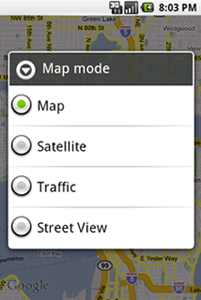
Any menu item can be used as an interface for turning options on and off. This can be indicated with a checkbox for stand-alone options, or radio buttons for groups of mutually exlusive options (see the screenshot, to the right).
어떤 메뉴 아이템은 선택option을 켜고on 끄는off 인터페이스로써 사용될 수도 있다. 이것은 독립적인 선택이 가능한 체크박스, 또는 상호 배타적인 선택이 가능한 라디오 버튼을 가지고 표시될 수 있다(오른쪽에 있는 스크린샷을 보라).
Note: Menu items in the Icon Menu cannot display a checkbox or radio button. If you choose to make items in the Icon Menu checkable, then you must personally indicate the state by swapping the icon and/or text each time the state changes between on and off.
Note: 아이콘 메뉴에 있는 메뉴 아이템은 체크박스나 라디오 버튼을 표시할 수 없다. 만약 아이콘 메뉴에 있는 아이템을 체크 가능하게 하려면, 여러분은 개인적으로 온/오프 상태가 변할 때마다 아이콘 및/또는 텍스트를 교체함으로써 그 상태를 표시해야 한다.
To make a single item checkable, use the setCheckable()
하나의 아이템을 체크 가능하게 만들고자 한다면, 다음과 같이 setCheckable() 메쏘드를 사용하라.
menu.add(0, VIBRATE_SETTING_ID, 0, "Vibrate")
    .setCheckable(true);
This will display a checkbox with the menu item (unless it's in the Icon Menu). When the item
is selected, the onOptionsItemSelected() callback is called as usual. It is here that
you must set the state of the checkbox. You can query the current state of the item with
isChecked()setChecked()onOptionsItemSelected() callback:
이것은 메뉴 아이템을 체크박스로 보여줄 것이다(단, 그것이 아이콘 메뉴에 있지 않는 한). 아이템이 선택될 때, onOptionsItemSelected() 콜백이 보통의 경우처럼 호출된다. 이곳이 바로 여러분이 체크박스의 상태를 설정해야 하는 곳이다. 여러분은 isChecked()를 사용해서 아이템의 현재 상태를 질의query할 수 있으며, 그리고 setChecked()를 사용해서 체크 상태를 설정할 수 있다. 아래의 내용은 onOptionsItemSelected() 콜백 내에 있을 수 있는 것이다.
switch (item.getItemId()) {
case VIBRATE_SETTING_ID:
  if (item.isChecked()) item.setChecked(false);
  else item.setChecked(true);
  return true;
...
}
To make a group of mutually exclusive radio button items, simply
assign the same group ID to each menu item
and call setGroupCheckable()setCheckable()
on each menu items, because the group as a whole is set checkable. Here's an example of
two mutually exclusive options in a Submenu:
상호 배타적인 라디오 버튼 아이템 그룹을 만들기 위해서는, 간단하게 동일한 그룹 ID를 각 메뉴 아이템에 할당하고 setGroupCheckable()를 호출하라. 이런 경우, 그룹 전체가 체크 가능한 것으로 설정되기 때문에 각 메뉴 아이템에서 setCheckable()를 호출할 필요는 없다. 서브메뉴 안에 있는 두 개의 상호 배타적인 선택option 예제가 여기 있다.
SubMenu subMenu = menu.addSubMenu("Color");
subMenu.add(COLOR_MENU_GROUP, COLOR_RED_ID, 0, "Red");
subMenu.add(COLOR_MENU_GROUP, COLOR_BLUE_ID, 0, "Blue");
subMenu.setGroupCheckable(COLOR_MENU_GROUP, true, true);
In the setGroupCheckable() method, the first argument is the group ID
that we want to set checkable. The second argument is whether we want the group items
to be checkable. The last one is whether we want each item to be exclusively checkable
(if we set this false, then all the items will be checkboxes instead of radio buttons).
When the group is set to be exclusive (radio buttons), each time a new item is selected,
all other are automatically de-selected.
setGroupCheckable() 메쏘드에서, 첫 번째 아규먼트는 우리가 체크 가능한 것으로 설정하고자 하는 그룹에 대한 ID이다. 두 번째 아규먼트는 그룹 아이템들이 체크 가능한 지에 대한 것이다. 마지막은 각 아이템이 상호배타적으로 체크되어야 하는 지에 대한 것이다(만약 우리가 이것을 거짓false으로 설정한다면, 모든 아이템은 라디오 버튼 대신에 체크박스가 될 것이다). 그룹이 상호배타적인 것으로 설정될 때(라디오 버튼) 새로운 아이템이 선택될 때마다 나머지 모든 것들은 자동으로 선택이 해제된다.
Note:
Checkable menu items are intended to be used only on a per-session basis and not saved to the device
(e.g., the Map mode setting in the Maps application is not saved screenshot above).
If there are application settings that you would like to save for the user,
then you should store the data using Preferences,
and manage them with a PreferenceActivity.
Note: 체크 가능한Checkable 메뉴 아이템은 오직 세션 별 기반에서만 사용되도록 의도되었다. 그래서 그것은 디바이스에 저장되지 않는다(예를 들어 Maps 애플리케이션 안에서 Map 모드 설정은 저장되지 않는다. ? 위에 있는 스크린샷). 만약 여러분이 사용자를 위해 저장하고자 하는 애플리케이션 설정이 있다면, 여러분은 프레퍼런스Preferences를 사용해서 데이터를 저장해야 하며, 그리고 PreferenceActivity를 사용해서 그것들을 관리해야 한다.
Quick access shortcut keys using letters and/or numbers can be added to menu items with
setAlphabeticShortcut(char) (to set char shortcut), setNumericShortcut(int)
(to set numeric shortcut),
or setShortcut(char,int) (to set both). Case is not sensitive.
For example:
문자 및(또는) 숫자를 사용하는 빠른 접근 숏컷 키shortcut key들은 setAlphabeticShortcut(char)(문자 숏컷shortcut을 설정하기 위해), setNumericShortcut(int)(숫자 숏컷을 설정하기 위해), 또는 setShortcut(char,int) (두 가지 모두를 설정하기 위해)을 사용해서 메뉴 아이템들에 추가될 수 있다. 예를 들어 다음과 같다.
menu.add(0, MENU_QUIT, 0, "Quit")
    .setAlphabeticShortcut('q');
Now, when the menu is open (or while holding the MENU key), pressing the "q" key will select this item.
이제, 메뉴가 오픈될 때(또는 MENU 키가 눌려져 있는 동안), “q” 키를 누르면 이 아이템을 선택할 것이다
This shortcut key will be displayed as a tip in the menu item, below the menu item name (except for items in the Icon Menu).
이 숏컷 키shortcut key는 메뉴 아이템에 하나의 팁처럼 메뉴 아이템 이름 아래에 표시될 것이다(단, 아이콘 메뉴에 있는 아이템에서는 표시되지 않는다).
Note: Shortcuts cannot be added to items in a Context Menu.
Note: 숏컷은 컨텍스트 메뉴 안의 아이템에 추가될 수 없다.
If you've read the Application Fundamentals, then you're at least a little familiar with Android Intents. These allow applications to bind with each other, share information, and perform user tasks cooperatively. Just like your application might fire an Intent to launch a web browser, an email client, or another Activity in your application, you can perform such actions from within a menu. There are two ways to do this: define an Intent and assign it to a single menu item, or define an Intent and allow Android to search the device for activities and dynamically add a menu item for each one that meets the Intent criteria.
만약 여러분이 2장. “애플리케이션 기초”를 읽었다면, 안드로이드 인텐트에 적어도 조금은 익숙해 졌을 것이다. 이것은 애플리케이션들이 서로 서로 연결되고, 정보를 공유하고, 그리고 사용자 태스크를 협력해서 수행할 수 있게 한다. 마치 여러분의 애플리케이션이 웹 브라우저, 이메일 클라이언트, 또는 여러분의 애플리케이션 내의 또 다른 액티비티를 시작시키기 위해 인텐트를 발생시키는 것과 같이, 여러분은 메뉴에서도 그런 액션을 수행할 수 있다. 이것에는 두 가지 방법이 있다. 하나는 인텐트를 정의하고 단일 메뉴 아이템에 그것을 할당하는 것이다. 다른 하나는 인텐트를 정의하고 안드로이드에게 액티비티를 디바이스에서 검색하게 하고, 그 인텐트 규격에 맞는 각각의 것을 메뉴 아이템에 동적으로 추가하는 것이다.
For more information on creating Intents and providing your application's services to other applications, read the Intents and Intent Filters document.
인텐트 생성과 다른 애플리케이션에 애플리케이션 서비스를 제공하는 것에 대한 더 많은 정보에 대해서는, 5장. “인텐트와 인텐트 필터” 문서를 읽어라.
If you want to offer a specific menu item that launches a new Activity, then you
can specifically define an Intent for the menu item with the
setIntent()
만약 여러분이 새로운 액티비티를 런치하는 특정 메뉴 아이템을 제공하자고 한다면, 여러분은 setIntent() 메쏘드를 사용해서 해당 메뉴 아이템에 대한 인텐트를 명확하게 정의할 수 있다.
For example, inside the onCreateOptionsMenu()
예를 들어 onCreateOptionsMenu() 메쏘드 내에서, 아래와 같은 인텐트를 가지는 신규 메뉴 아이템을 정의할 수 있다.
MenuItem menuItem = menu.add(0, PHOTO_PICKER_ID, 0, "Select Photo");
menuItem.setIntent(new Intent(this, PhotoPicker.class));
MenuItem menuItem = menu.add(0, PHOTO_PICKER_ID, 0, "Select Photo");
menuItem.setIntent(new Intent(this, PhotoPicker.class));
Android will automatically launch the Activity when the item is selected.
아이템이 선택될 때, 안드로이드는 자동으로 액티비티를 런치할 것이다.
Note: This will not return a result to your Activity.
If you wish to be returned a result, then do not use setIntent().
Instead, handle the selection as usual in the onOptionsMenuItemSelected()
or onContextMenuItemSelected() callback and call
startActivityForResult()
Note: 이것은 여러분의 액티비티에 결과를 리턴하지 않을 것이다. 만약 여러분이 결과를 되돌려받기를 바란다면, setIntent()를 사용하지 마라. 대신 onOptionsMenuItemSelected() 또는 onContextMenuItemSelected() 콜백에서 통상 하듯이 선택된 아이템을 처리하고, 그런 다음에 startActivityForResult()를 호출하라.
If there are potentially multiple activities that are relevant to your current Activity or selected item, then the application can dynamically add menu items that execute other services.
만약 여러분의 현재 액티비티 또는 선택된 아이템과 관련된 다수의 잠재적 액티비티가 있다면, 애플리케이션은 동적으로 다른 서비스들을 실행하는 메뉴 아이템을 추가할 수 있다.
During menu creation, define an Intent with the category Intent.ALTERNATIVE_CATEGORY and/or
Intent.SELECTED_ALTERNATIVE, the MIME type currently selected (if any), and any other
requirements, the same way as you would satisfy an intent filter to open a new
Activity. Then call
addIntentOptions()
메뉴를 생성하는 동안, Intent.ALTERNATIVE_CATEGORY 카테고리 및/또는 Intent.SELECTED_ALTERNATIVE 카테고리, (만약 있다면)현재 선택된 MIME 타입, 그리고 그 밖의 다른 요건들을 정의하라. 즉 새로운 액티비티를 오픈하기 위해 인텐트 필터를 충족시켜야 하는 것처럼 그렇게 하라. 그런 다음에 안드로이드가 그 요구조건에 일치하는 임의의 서비스를 검색하도록 하기 위해 addIntentOption()을 호출하고, 그것들을 여러분의 메뉴에 추가하라. 만약 해당 인텐트를 만족시키는 설치된 애플리케이션이 없다면, 어떤 추가적인 메뉴 아이템도 추가되지 않는다.
Note:
SELECTED_ALTERNATIVE is used to handle the currently selected element on the
screen. So, it should only be used when creating a Menu in onCreateContextMenu() or
onPrepareOptionsMenu(), which is called every time the Options Menu is opened.
Note: SELECTED_ALTERNATIVE는 스크린에서 현재 선택된 엘리먼트를 처리하기 위해 사용된다. 그러므로 그것은 옵션 메뉴가 오픈될 때 항상 호출되는 onCreateContext Menu() 또는 onPrepareOptionsMenu()에서 메뉴를 만들 때만 사용되어야 한다.
Here's an example demonstrating how an application would search for additional services to display on its menu.
여기에 애플리케이션이 자신의 메뉴에 보여줄 추가적인 서비스들을 검색하는 방법을 설명하는 예제가 있다.
public boolean onCreateOptionsMenu(Menu menu){
    super.onCreateOptionsMenu(menu);

    // Create an Intent that describes the requirements to fulfill, to be included
    // in our menu. The offering app must include a category value of Intent.CATEGORY_ALTERNATIVE.
    Intent intent = new Intent(null, getIntent().getData());
    intent.addCategory(Intent.CATEGORY_ALTERNATIVE);

    // Search for, and populate the menu with, acceptable offering applications.
    menu.addIntentOptions(
         thisClass.INTENT_OPTIONS,  // Menu group
         0,      // Unique item ID (none)
         0,      // Order for the items (none)
         this.getComponentName(),   // The current Activity name
         null,   // Specific items to place first (none)
         intent, // Intent created above that describes our requirements
         0,      // Additional flags to control items (none)
         null);  // Array of MenuItems that corrolate to specific items (none)

    return true;
}
For each Activity found that provides an Intent Filter matching the Intent defined, a menu
item will be added, using the android:label value of the intent filter as the text
for the menu item.
The addIntentOptions()
정의된 인텐트와 일치하는 인텐트 필터를 제공하는 검색되어진 각각의 액티비티가 메뉴 아이템이 추가될 것이다. 그 메뉴 아이템에는 그 액티비티의 인텐트 필터의 android:label 값이 메뉴 아이템 텍스트로 보이게 된다. addIntentOptions() 메쏘드는 또한 추가된 메뉴 아이템들의 개수를 리턴할 것이다.
Also be aware that, when addIntentOptions() is called, it will override any and all
menu items in the menu group specified in the first argument.
addIntentOptions()가 호출될 때, 그것은 첫 번째 아규먼트에 명시된 메뉴 그룹 안에 있는 모든 메뉴 아이템들을 오버라이드 할 것이라는 것을 또한 주목하라.
If you wish to offer the services of your Activity to other application menus, then you
only need to define an intent filter as usual. Just be sure to include the ALTERNATIVE and/or
SELECTED_ALTERNATIVE values in the name attribute of
a <category> element in the intent filter. For example:
만약 여러분이 다른 애플리케이션의 메뉴에 여러분의 액티비티의 서비스를 제공하고자 한다면, 여러분은 보통의 경우처럼 인텐트 필터만 정의하면 된다. 인텐트 필터에 있는 <category> 엘리먼트의 name 애트리뷰트에 ALTERNATIVE 및/또는 SELECTED_ALTERNATIVE 값들을 포함시키도록 하라. 예를 들어 다음과 같다.
<intent-filter label="Resize Image">
    ...
    <category android:name="android.intent.category.ALTERNATIVE" />
    <category android:name="android.intent.category.SELECTED_ALTERNATIVE" />
    ...
</intent-filter>
read more about writing intent filters in the Intents and Intent Filters document.
For a sample application using this technique, see the Note Pad sample code.
5장. “인텐트와 인텐트 필터”에서 인텐트 필터를 작성하는 것에 대해 더 자세히 보라. 이 기술을 사용하는 샘플 애플리케이션에 대해서는 (역주 : sdk에 포함되어 있는) 노트패드NotePad 샘플 코드를 보라.