Your layout is the architecture for the user interface in an Activity. It defines the layout structure and holds all the elements that appear to the user. You can declare your layout in two ways:
레이아웃은 액티비티 내의 사용자 인터페이스에 대한 아키텍처이다. 그것은 레이아웃 구조를 정의하고, 사용자에게 보여지는 모든 엘리먼트를 보유한다. 여러분은 두 가지 방법으로 레이아웃을 선언할 수 있다.
The Android framework gives you the flexibility to use either or both of these methods for declaring and managing your application's UI. For example, you could declare your application's default layouts in XML, including the screen elements that will appear in them and their properties. You could then add code in your application that would modify the state of the screen objects, including those declared in XML, at run time.
안드로이드 프레임워크는 애플리케이션 UI를 선언하는 것, 그리고 그것을 관리하는 것에 대한 메쏘드를 제공하며, 그것들 중 어느 한 쪽, 또는 둘 다를 사용할 수 있는 유연성 또한 제공한다. 예를 들어 여러분은 엘리먼트와 엘리먼트의 속성들로 표현되는 스크린 엘리먼트들을 포함하는 XML로 애플리케이션의 디폴트 레이아웃을 선언할 수 있다. 그런 다음에 런타임에서 XML 안에 선언된 스크린 오브젝트의 상태를 수정하도록 애플리케이션에 코드를 추가할 수 있다.
The advantage to declaring your UI in XML is that it enables you to better separate the presentation of your application from the code that controls its behavior. Your UI descriptions are external to your application code, which means that you can modify or adapt it without having to modify your source code and recompile. For example, you can create XML layouts for different screen orientations, different device screen sizes, and different languages. Additionally, declaring the layout in XML makes it easier to visualize the structure of your UI, so it's easier to debug problems. As such, this document focuses on teaching you how to declare your layout in XML. If you're
interested in instantiating View objects at runtime, refer to the ViewGroup and
View class references.
XML로 UI를 선언하는 것의 장점은, 애플리케이션의 프리젠테이션과 그것의 동작을 제어하는 코드를 더 잘 구분할 수 있게 한다는 것이다. 이 경우, UI에 대한 기술description은 애플리케이션 코드 외부에 있게 된다. 이것은 소스코드를 수정하고 재컴파일recompile하지 않고도 그것을 수정 또는 개조할 수 있다는 것을 의미한다. 예를 들어 여러분은 서로 다른 스크린 오리엔테이션, 서로 다른 디바이스 스크린 사이즈, 그리고 서로 다른 언어에 대한 별도의 XML 레이아웃들을 만들 수 있다. 더불어 XML로 레이아웃을 선언하는 것은, UI 구조가 보다 쉽게 눈에 보이도록 한다. 그러므로 문제점을 디버깅하기 더 쉬어진다. 그와 같은 입장에서, 이 문서는 XML로 레이아웃을 선언하는 방법을 가르치는 것에 집중한다. 만약 여러분이 런타임에서 뷰View 오브젝트를 인스턴스화 하는 것에 관심이 있다면, 뷰그룹ViewGroup과 뷰View 클래스 레퍼런스를 참고하기 바란다.
In general, the XML vocabulary for declaring UI elements closely follows the structure and naming of the classes and methods, where element names correspond to class names and attribute names correspond to methods. In fact, the correspondence is often so direct that you can guess what XML attribute corresponds to a class method, or guess what class corresponds to a given xml element. However, note that not all vocabulary is identical. In some cases, there are slight naming differences. For
example, the EditText element has a text attribute that corresponds to
EditText.setText().
일반적으로, UI 엘리먼트를 선언하기 위한 XML 어휘는 클래스과 메쏘드의 구조와 이름에 밀접하게 연관된다. XML에서 엘리먼트의 이름은 클래스 이름에 대응되며, 애트리뷰트 이름은 메쏘드에 대응된다. 사실, 이러한 대응관계는 여러분이 XML 애트리뷰트가 어떤 클래스 메쏘드에 대응하는지, 또는 주어진 XML 엘리먼트에 대응하는 클래스가 무엇인지를 추측할 수 있을 정도로 대부분의 경우 매우 직접적으로 연관된다. 하지만 모든 어휘가 정확하게 클래스 또는 메쏘드 명과 일치하지 않다는 점에 주의하라. 몇 가지 경우에는 사소한 이름 차이가 있다. 예를 들어 EditText 엘리먼트는 EditText.setText()에 대응되는 text 애트리뷰트를 가진다.
Tip: Learn more about different layout types in Common Layout Objects. There are also a collection of tutorials on building various layouts in the Hello Views tutorial guide.
Tip: “일반적인 레이아웃 오브젝트”에서 다른 레이아웃 타입에 대해 더 많이 배워라. 또한, Hello Views 튜토리얼 가이드에 다양한 레이아웃을 만드는 튜토리얼 모음이 있다.
For your convenience, the API reference documentation for UI related classes lists the available XML attributes that correspond to the class methods, including inherited attributes.
To learn more about the available XML elements and attributes, as well as the format of the XML file, see Layout Resources.
편의 상, 클래스와 관련된 UI에 대한 API 레퍼런스 문서는 클래스 메쏘드에 대응되는 사용가능한 XML 애트리뷰트를 나열하고 있다. 그것은 상속된 애트리뷰트를 포함한다. XML 파일의 포맷과 더불어, 사용가능한 XML 엘리먼트와 애트리뷰트에 대해 더 많이 배우려면 4장. “리소스와 에셋”의 “사용가능한 리소스 타입” 중 “레이아웃 리소스”를 보라.
Using Android's XML vocabulary, you can quickly design UI layouts and the screen elements they contain, in the same way you create web pages in HTML with a series of nested elements.
안드로이드의 XML 어휘를 사용해서, 여러분은 HTML로 웹페이지를 생성하는 것과 비슷한 방법으로 네스티드nested 엘리먼트들의 시리즈로 UI 레이아웃과 그것들이 포함하는 스크린 엘리먼트들을 쉽게 디자인할 수 있다.
Each layout file must contain exactly one root element, which must be a View or ViewGroup object. Once you've defined the root element, you can add additional layout objects or widgets as child elements to gradually build a View hierarchy that defines your layout. For example, here's an XML layout that uses a vertical LinearLayout
to hold a TextView and a Button:
각각의 레이아웃 파일은 정확하게 하나의 루트root 엘리먼트를 포함해야 하며, 그것은 뷰View 또는 뷰그룹ViewGroup 오브젝트여야 한다. 일단 여러분이 루트root 엘리먼트를 정의했다면, 레이아웃을 정의하는 뷰 계층구조를 순차적으로 만들어내는 자식child 엘리먼트로 추가적인 레이아웃 오브젝트 또는 위젯을 추가할 수 있다. 예를 들어 여기에 TextView와 Button을 보유한 버티컬 LinearLayout을 사용하는 XML 레이아웃이 아래에 있다.
<?xml version="1.0" encoding="utf-8"?>
<LinearLayout xmlns:android="http://schemas.android.com/apk/res/android"
              android:layout_width="fill_parent"
              android:layout_height="fill_parent"
              android:orientation="vertical" >
    <TextView android:id="@+id/text"
              android:layout_width="wrap_content"
              android:layout_height="wrap_content"
              android:text="Hello, I am a TextView" />
    <Button android:id="@+id/button"
            android:layout_width="wrap_content"
            android:layout_height="wrap_content"
            android:text="Hello, I am a Button" />
</LinearLayout>
After you've declared your layout in XML, save the file with the .xml extension,
in your Android project's res/layout/ directory, so it will properly compile.
We'll discuss each of the attributes shown here a little later.
이드 프로젝트의 res/layout/ 디렉토리에 .xml 확장자를 가진 파일을 저장하라. 우리는 앞에서 보여진 각각의 애트리뷰트들에 대해서는 조금 뒤에 논의할 것이다.
When you compile your application, each XML layout file is compiled into a
View resource. You should load the layout resource from your application code, in your
Activity.onCreate() callback implementation.
Do so by calling setContentView()R.layout.layout_file_name
For example, if your XML layout is saved as main_layout.xml, you would load it
for your Activity like so:
여러분이 애플리케이션을 컴파일할 때, 각각의 XML 레이아웃 파일은 뷰 리소스로 컴파일된다. 여러분은 Activity.onCreate() 콜백을 구현하는 곳에서, 애플리케이션 코드에서 레이아웃 리소스를 로드해야 한다. 이것은 setContentView()를 호출하고 그 메쏘드에 R.layout.layout_file_name 형태의 레이아웃 리소스에 대한 레퍼런스를 파라미터로 전달함으로써 가능하다. 예를 들어 만약 여러분의 XML 레이아웃이 main_layout.xml로 저장되어 있다면, Activity는 다음과 같이 그것을 로드할 수 있다.
public void onCreate(Bundle savedInstanceState) {
    super.onCreate(savedInstanceState);
    setContentView.(R.layout.main_layout);
}
The onCreate() callback method in your Activity is called by the Android framework when
your Activity is launched (see the discussion on Lifecycles, in the
Application Fundamantals, for more on this).
액티비티 내의 onCreate() 콜백 메쏘드는 그 액티비티가 시작됐을 때, 안드로이드 프레임워크에 의해 호출된다(이것에 대한 더 자세한 것을 위해선, 2장. “애플리케이션 기초” 안의 “생명주기”를 보라).
Every View and ViewGroup object supports their own variety of XML attributes.
Some attributes are specific to a View object (for example, TextView supports the textSize
attribute), but these attributes are also inherited by any View objects that may extend this class.
Some are common to all View objects, because they are inherited from the root View class (like
the id attribute). And, other attributes are considered "layout parameters," which are
attributes that describe certain layout orientations of the View object, as defined by that object's
parent ViewGroup object.
모든 뷰와 뷰그룹 오브젝트는 그것들 자신의 다양한 XML 애트리뷰트를 지원한다. 몇 가지 애트리뷰트는 뷰 오브젝트(예를 들어 TextView는 textSize 애트리뷰트를 지원한다)에 국한된다. 그러나 이들 애트리뷰트는 이 클래스를 상속받는 임의의 뷰 오브젝트에게도 상속된다. (id 애트리뷰트 같은) 몇 가지는 모든 뷰 오브젝트에서 보편적으로 사용가능하다. 왜냐하면, 그것들이 루트root 뷰View 클래스로부터 상속되었기 때문이다. 그리고 그 밖의 애트리뷰트로는 “레이아웃 파라미터(layout parameters)”가 중요하다. 그것은 뷰 오브젝트에 대한 특정 레이아웃 오리엔테이션을 설명하는 애트리뷰트이며, 이것은 해당 오브젝트의 부모parent 뷰그룹 오브젝트에 의해 정의된다.
Any View object may have an integer ID associated with it, to uniquely identify the View within the tree.
When the application is compiled, this ID is referenced as an integer, but the ID is typically
assigned in the layout XML file as a string, in the id attribute.
This is an XML attribute common to all View objects
(defined by the View class) and you will use it very often.
The syntax for an ID, inside an XML tag is:
어떤 뷰 오브젝트든지 트리 안에서 그 뷰를 유일하게 식별하기 위한 뷰와 결합된 정수integer ID를 가질 수 있다. 애플리케이션이 컴파일될 때, 이 ID는 정수integer로써 레퍼런스된다. 하지만 일반적으로 ID는 레이아웃 XML 파일에서 id 애트리뷰트에 있는 문자열로 할당된다. 이것은 (뷰 클래스에 의해 정의된) 모든 뷰 오브젝트에게 공통으로 사용되는 XML 애트리뷰트이며, 여러분은 그것을 매우 자주 사용할 것이다. XML 태그에서 ID에 대한 구문은 다음과 같다.
android:id="@+id/my_button"
The at-symbol (@) at the beginning of the string indicates that the XML parser should parse and expand the rest
of the ID string and identify it as an ID resource. The plus-symbol (+) means that this is a new resource name that must
be created and added to our resources (in the R.java file). There are a number of other ID resources that
are offered by the Android framework. When referencing an Android resource ID, you do not need the plus-symbol,
but must add the android package namespace, like so:
문자열의 시작 위치에 있는 @심볼(at-symbol)는, XML 구문분석기parser가 그것을 분석하고 ID 문자열의 나머지 부분을 확장(expand, 역주: 치환하기 위해 분리해 냄)해서, 그것을 ID 리소스로써 인식해야 한다는 것을 지시한다. +심볼(plus-symbol)은 (R.java 파일에 있는) 리소스들에 새로운 리소스 이름이 생성되어 추가되어야 한다는 것을 의미한다. 안드로이드 프레임워크에 의해 제공되는 다른 많은 ID 리소스들이 있다. 안드로이드 리소스 ID를 레퍼런스할 때는, +심볼을 필요로 하지 않는다. 하지만 다음과 같이 android 패키지 네임스페이스를 추가해야 한다.
android:id="@android:id/empty"
With the android package namespace in place, we're now referencing an ID from the android.R
resources class, rather than the local resources class.
그곳에 android 패키지 네임스페이스가 있으면, 안드로이드는 이제 ID를 로컬 리소스 클래스가 아니라 android.R 리소스 클래스에서 레퍼런스한다.
In order to create views and reference them from the application, a common pattern is to:
뷰를 생성하고 애플리케이션에서 그것을 레퍼런스 하는 일반적인 패턴은 다음과 같다.
<Button android:id="@+id/my_button"
        android:layout_width="wrap_content"
        android:layout_height="wrap_content"
        android:text="@string/my_button_text"/>
onCreate()Button myButton = (Button) findViewById(R.id.my_button);
<Button android:id="@+id/my_button"
        android:layout_width="wrap_content"
        android:layout_height="wrap_content"
        android:text="@string/my_button_text"/>
Button myButton = (Button) findViewById(R.id.my_button);
Defining IDs for view objects is important when creating a RelativeLayout.
In a relative layout, sibling views can define their layout relative to another sibling view,
which is referenced by the unique ID.
뷰 오브젝트에 대한 ID를 정의하는 것은 RelativeLayout을 생성할 때 중요하다. RelativeLayout에서, 형제sibling뷰들은 그것들의 레이아웃을 다른 형제sibling뷰에 상대적으로 정의할 수 있다. 그것은 고유한 ID에 의해 레퍼런스된다.
An ID need not be unique throughout the entire tree, but it should be unique within the part of the tree you are searching (which may often be the entire tree, so it's best to be completely unique when possible).
ID는 전체 트리에 걸쳐 유일할 필요는 없으나, 여러분이 검색하는 트리의 영역 내에서는 유일해야 한다(검색하는 트리 영역은 종종 전체 트리가 될 수 있다. 그러므로 가능하면 완벽하게 유일하게 되어 있는 것이 최선이다).
XML layout attributes named layout_something define
layout parameters for the View that are appropriate for the ViewGroup in which it resides.
layout_something 형식으로 명명된 XML 레이아웃 애트리뷰트는, 뷰에 대한 레아아웃 파라미터를 정의한다. 이것은 뷰그룹 내에 뷰를 적절하게 위치하게 한다.
Every ViewGroup class implements a nested class that extends ViewGroup.LayoutParams. This subclass
contains property types that define the size and position for each child view, as
appropriate for the view group. As you can see in the figure below, the parent
view group defines layout parameters for each child view (including the child view group).
모든 뷰그룹 클래스는 ViewGroup.LayoutParams를 확장하는 네스티드nested 클래스를 구현한다. 이 서브클래스는 뷰그룹에 대해 알맞게, 각각의 자식child 뷰에 대한 크기와 위치를 정의하는 속성 타입을 포함한다. 아래의 그림에서 여러분이 볼 수 있듯이, 부모parent 뷰그룹은 각각의 자식child 뷰(뷰그룹을 포함함)에 대한 레이아웃 파라미터를 정의한다.
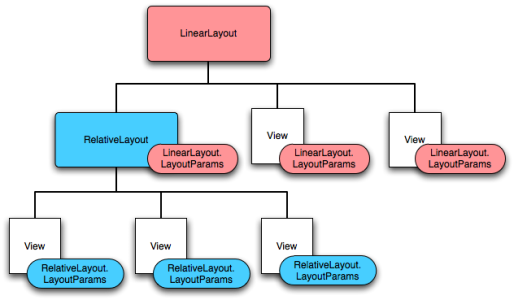
Note that every LayoutParams subclass has its own syntax for setting values. Each child element must define LayoutParams that are appropriate for its parent, though it may also define different LayoutParams for its own children.
모든 LayoutParams 서브클래스는 그 값을 설정하기 위한 자기 자신의 구문을 가진다는 것에 주의하라. 각각의 자식child 엘리먼트는 또한 자신의 자식들children에 대해 다른 LayoutParams을 정의할 수 있지만, 그것의 부모parent에 알맞게 LayoutParams을 정의해야 한다.
All view groups include a width and height (layout_width and layout_height),
and each view is required to define them.
Many LayoutParams also include optional margins and
borders. You can specify width and height with exact measurements, though you probably won't want
to do this often. More often, you will tell your view to size itself either to
the dimensions required by its content, or to become as big as its parent view group
will allow (with the wrap_content and fill_parent values, respectively).
The accepted measurement types are defined in the
Available Resources document.
모든 뷰 그룹들은 너비와 높이(layout_width와 layout_height)를 포함하며, 각각의 뷰는 그것들을 정의하는 것이 필수사항이다. 많은 LayoutParams은 또한 마진margin과 보더border를 선택사항으로 포함한다(역주 : 이 문장에서 보더border는 패딩padding으로 바뀌어야 할 듯 함). 정확한 수치로 이 너비와 높이를 지정하는 것이 가능하다. 하지만, 아마도 이것은 자주하고 싶지는 않을 것이다. 대개는, (wrap_content와 fill_parent 값을 사용해서) 뷰가 자신이 보유한 컨텐트에 필요한 크기에 맞춰지게 하거나 또는 그것의 부모parent 뷰그룹이 허용하는 한 커지도록 하는 것이 사용될 것이다. 사용가능한 치수measurement 타입은 4장. “리소스와 에셋”의 “사용가능한 리소스”에 정의되어 있다.
The geometry of a view is that of a rectangle. A view has a location, expressed as a pair of left and top coordinates, and two dimensions, expressed as a width and a height. The unit for location and dimensions is the pixel.
뷰의 기하학적 모습은 직사각형이다. 뷰는 왼쪽left과 상단top 좌표의 쌍으로 표현되는 위치와 너비와 높이로 표시되는 2차원dimension을 가진다. 그 위치와 크기dimension에 대한 단위는 픽셀pixel이다.
It is possible to retrieve the location of a view by invoking the methods
getLeft() and getTop(). The former returns the left, or X,
coordinate of the rectangle representing the view. The latter returns the
top, or Y, coordinate of the rectangle representing the view. These methods
both return the location of the view relative to its parent. For instance,
when getLeft() returns 20, that means the view is located 20 pixels to the
right of the left edge of its direct parent.
메쏘드 getLeft()와 getTop()을 호출함으로써, 뷰의 위치를 얻는 것이 가능하다. 전자는 뷰를 나타내는 직사각형의 왼쪽, 또는 X 좌표를 리턴한다. 후자는 뷰를 나타내는 직사각형의 상단, 또는 Y 좌표를 리턴한다. 이 메쏘드 모두는 그것의 부모parent에 대해 상대적인 뷰의 위치를 리턴한다. 예를 들어 getLeft()가 20을 리턴하면, 그것이 의미하는 바는 해당 뷰가 자신의 직접적인 부모parent의 왼쪽 가장자리에서 20 픽셀 오른쪽에 위치한다는 것이다.
In addition, several convenience methods are offered to avoid unnecessary
computations, namely getRight() and getBottom().
These methods return the coordinates of the right and bottom edges of the
rectangle representing the view. For instance, calling getRight()
is similar to the following computation: getLeft() + getWidth().
추가적으로 몇 가지 편리한 메쏘드가 불필요한 계산, 즉 getRight()와 getBottom()를 피하기 위하여 제공된다. 이 메쏘드들은 뷰를 표시하는 직사각형의 우측과 하단 가장자리의 좌표를 반환한다. 예를 들어 getRight()를 호출하는 것은 다음과 같은 계산과 비슷하다.
The size of a view is expressed with a width and a height. A view actually possess two pairs of width and height values.
뷰의 크기는 너비와 높이로 표현된다. 뷰는 실제로 두 쌍의 너비와 높이 값을 가지고 있다.
The first pair is known as measured width and
measured height. These dimensions define how big a view wants to be
within its parent. The
measured dimensions can be obtained by calling getMeasuredWidth()
and getMeasuredHeight().
첫 번째 쌍은 측정된 너비measured width와 측정된 높이measured height로 일컬어진다. 이 크기는 하나의 뷰가 자신의 부모parent내에서 얼마나 커지고자 하는지를 정의한다. 측정된measured 크기는 getMeasuredWidth()와 getMeasured Height()를 호출해서 얻을 수 있다.
The second pair is simply known as width and height, or
sometimes drawing width and drawing height. These
dimensions define the actual size of the view on screen, at drawing time and
after layout. These values may, but do not have to, be different from the
measured width and height. The width and height can be obtained by calling
getWidth() and getHeight().
두 번째 쌍은 너비width와 높이height로 간단하게 일컬어진다. 또는 가끔은 드로잉 너비drawing width 또는 드로잉 높이drawing height로 일컬어지기도 한다. 이 크기는 레이아웃 이후 그리는 시점의 실제 스크린 상의 뷰의 크키를 정의한다. 그러나 이 값은 그래서는 안되지만, 측정된 너비measured width와 측정된 높이measured height와 다른 것을 가질 수도 있다. 너비width와 높이height는 getWidth()와 getHeight()를 호출해서 얻을 수 있다.
To measure its dimensions, a view takes into account its padding. The padding
is expressed in pixels for the left, top, right and bottom parts of the view.
Padding can be used to offset the content of the view by a specific amount of
pixels. For instance, a left padding of 2 will push the view's content by
2 pixels to the right of the left edge. Padding can be set using the
setPadding(int, int, int, int) method and queried by calling
getPaddingLeft(), getPaddingTop(),
getPaddingRight() and getPaddingBottom().
뷰는 자신의 크기dimension를 측정하기 위해, 패딩padding을 계산에 넣는다. 패딩은 뷰의 왼쪽, 상단, 오른쪽, 그리고 하단 영역에 대한 픽셀로 표현된다. 패딩은 특정 픽셀의 양만큼 뷰의 컨텐트 오프셋offset을 지정하기 위해 사용될 수 있다. 예를 들어 왼쪽 패딩 2는 왼쪽 가장자리에서 오른쪽으로 2 픽셀만큼 뷰 컨텐츠를 밀 것이다. 패딩은 setPadding(int,int,int,int) 메쏘드를 사용하여 설정될 수 있으며, getPaddingLeft(),getPaddingTop(),getPaddingRight(),그리고 getPaddingBottom()을 호출함으로써 질의query된다.
Even though a view can define a padding, it does not provide any support for
margins. However, view groups provide such a support. Refer to
ViewGroup and
ViewGroup.MarginLayoutParams for further information.
비록 뷰가 패딩을 정의할 수 있음에도 불구하고, 그것은 마진margin에 대한 어떤 지원도 제공하지 않는다. 하지만 뷰그룹은 그러한 지원을 제공한다. 추가 정보를 위하여 ViewGroup 과 ViewGroup.MarginLayoutParams를 참조하라.
For more information about dimensions, see Dimension Values.
크기Dimensions에 관한 더 많은 정보는 4장. “리소스와 에셋”의 “사용가능한 리소스 타입”중 크기 값을 보라.